-1.png)
An AI Agent is a virtual assistant that talks to your customers on WhatsApp using Artificial Intelligence (Google Gemini or OpenAI ChatGPT). It understands text and audio, answers questions based on the instructions and files you give it, and can even update the CRM on its own.
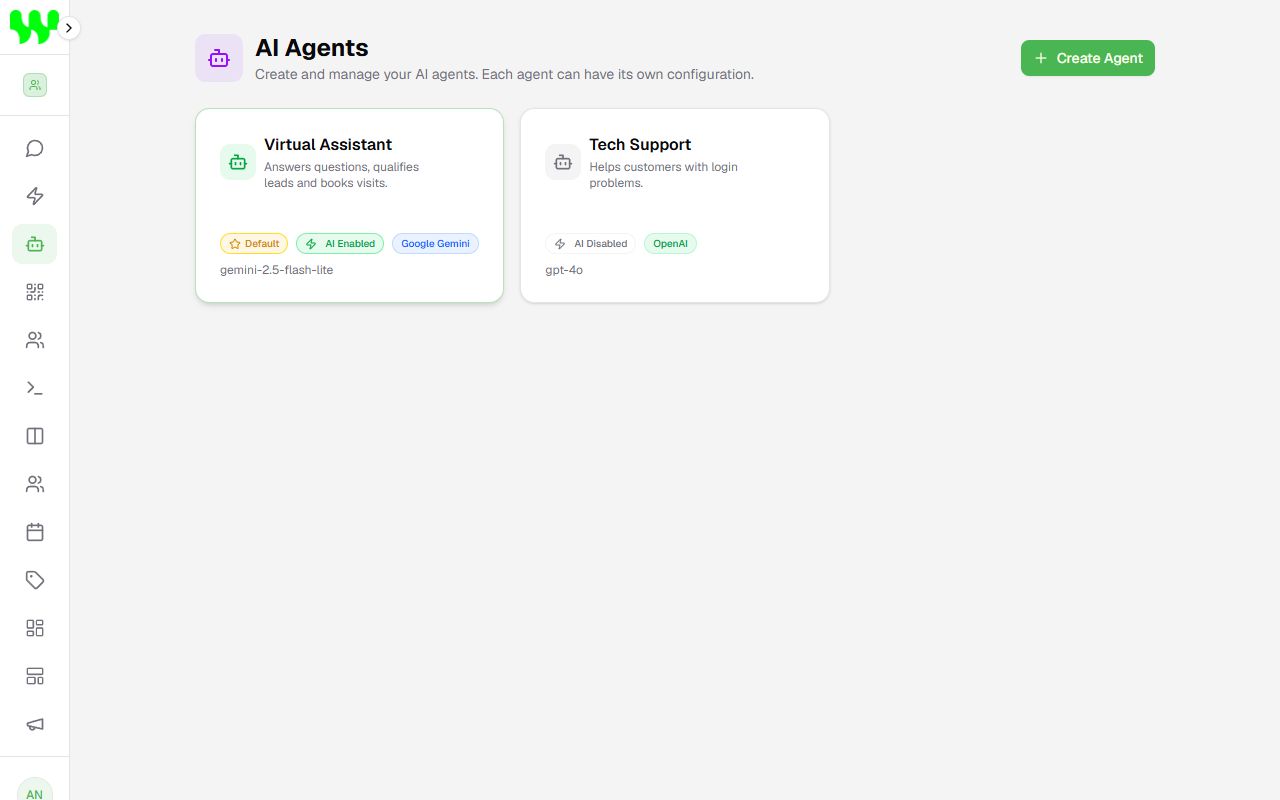
How the AI decides to answer
- The AI answers when no automation answered the message.
- It uses the agent linked to that chat; if there is none, the Default Agent; if there is no default, any enabled agent.
- If the AI is paused in that chat (by you, or because a human replied from the phone), it does not answer.
- The system waits a few seconds to group consecutive customer messages and answer them all at once.
Create an agent with the Persona Assistant
The easiest way is to let the AI itself write your agent's instructions:
- Open AI Agent and click Create Agent.
- Fill in the AI Persona Assistant:
- Agent Name (e.g. "Sales Consultant").
- Main Objective: what it is for.
- Tone of Voice: Professional, Friendly, Funny, Technical or Empathetic.
- Agent Response Language: automatic (follows the customer) or fixed.
- Key Knowledge: what it needs to know (hours, return policy, catalog...).
- About the Company (optional): products, prices, differentiators.
- Click Generate Persona & Create Agent and wait a few seconds.
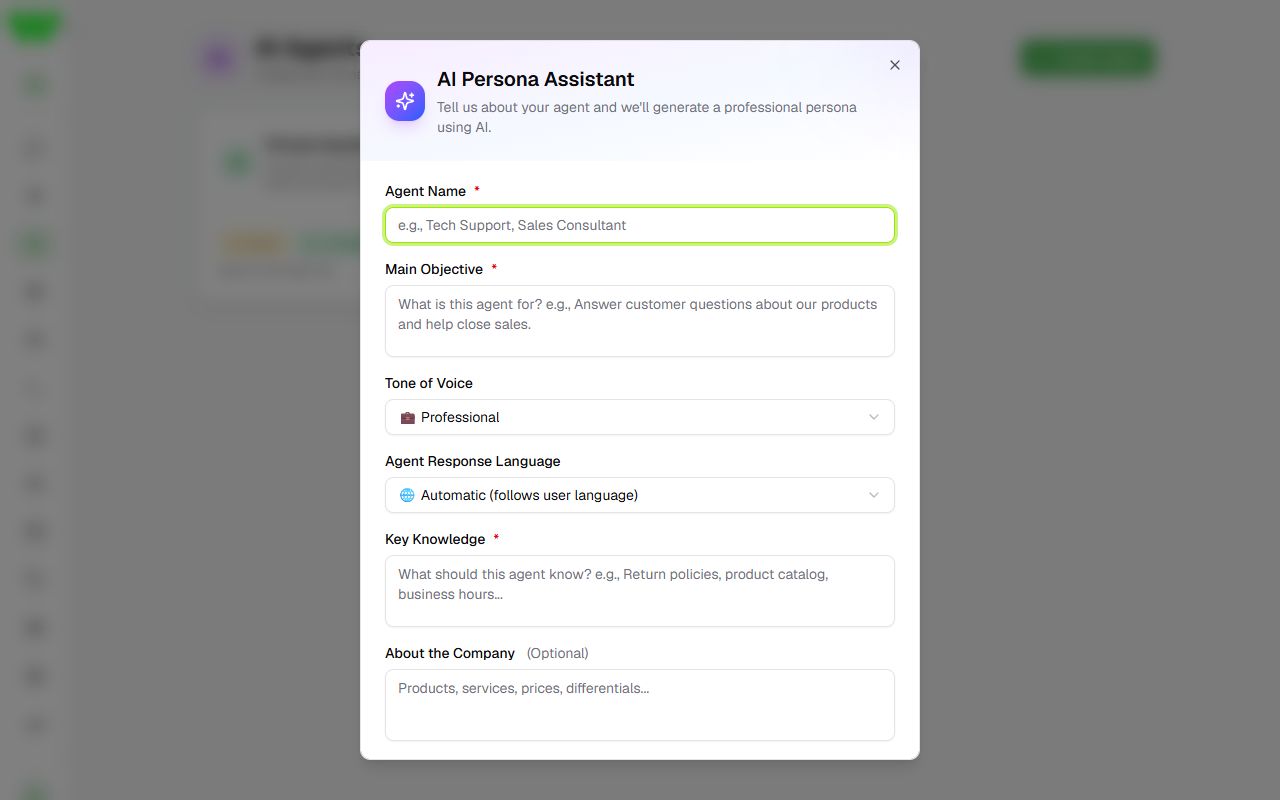
The agent is created with professional instructions ready to go. You can adjust everything afterwards.
General Settings
Click an agent to open its configuration. The first tab is General Settings.
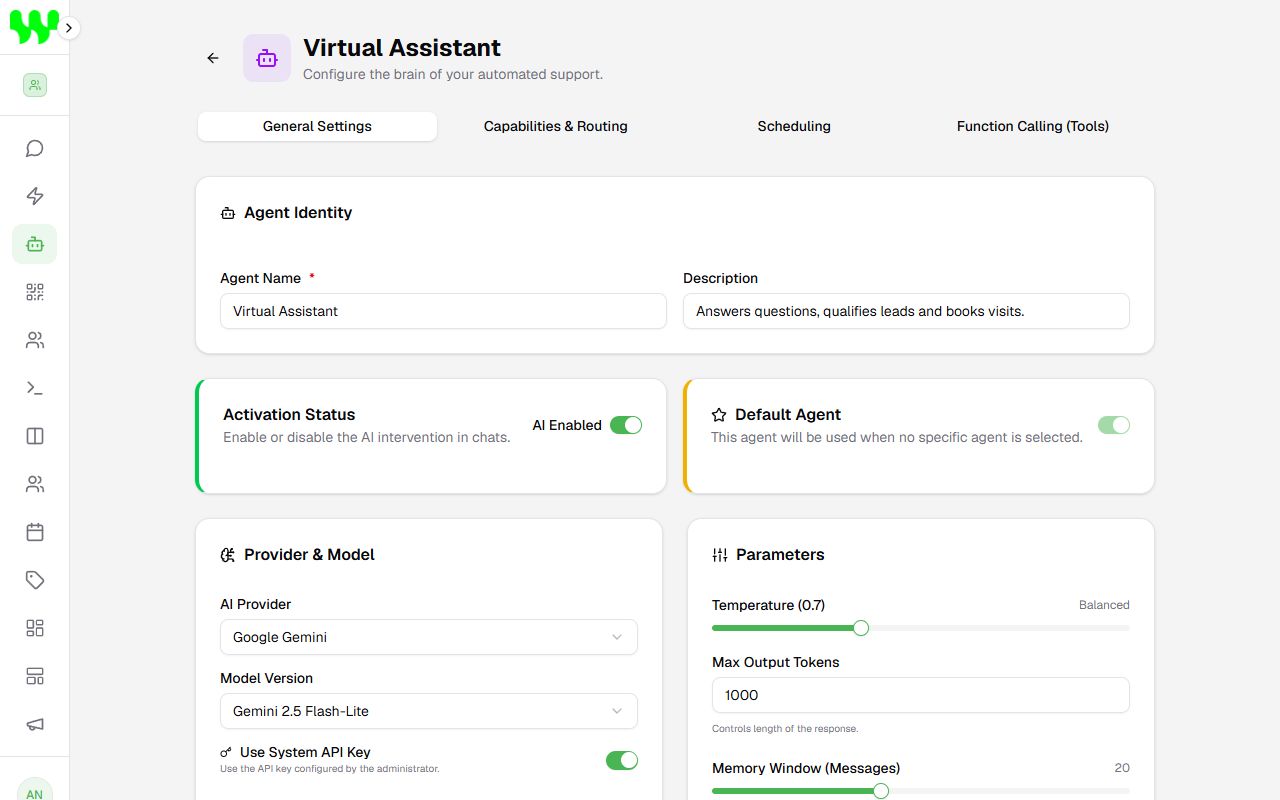
| Field | What it is |
|---|---|
| Agent Name / Description | How the agent appears to the team (and in messages: "AI: name"). |
| Activation Status | Turns the agent on (AI Enabled) or off for all chats. |
| Default Agent | The agent used when the chat has no specific agent. |
| AI Provider / Model Version | Google Gemini or OpenAI and the model used. Those marked "Recommended" have the best cost-benefit. |
| Use System API Key | On: uses the platform administrator's key (consumes your AI credits). Off: you provide your own key. |
| Temperature | Further left = precise, predictable answers; further right = creative. For customer service, keep it around 0.5–0.7. |
| Max Output Tokens | Maximum size of each answer. 1000 is enough in most cases. |
| Memory Window (Messages) | How many previous messages the AI remembers. Fewer messages = cheaper. |
| Fallback model | If the main model fails, the system automatically tries another model. |
| System Instructions (Persona) | The agent's "manual": who it is, how it speaks, what it can and cannot do. |
| Reference files | Upload PDFs, TXT or images (menu, price list, FAQ) for the AI to consult. |
Click Save Configuration when you are done.
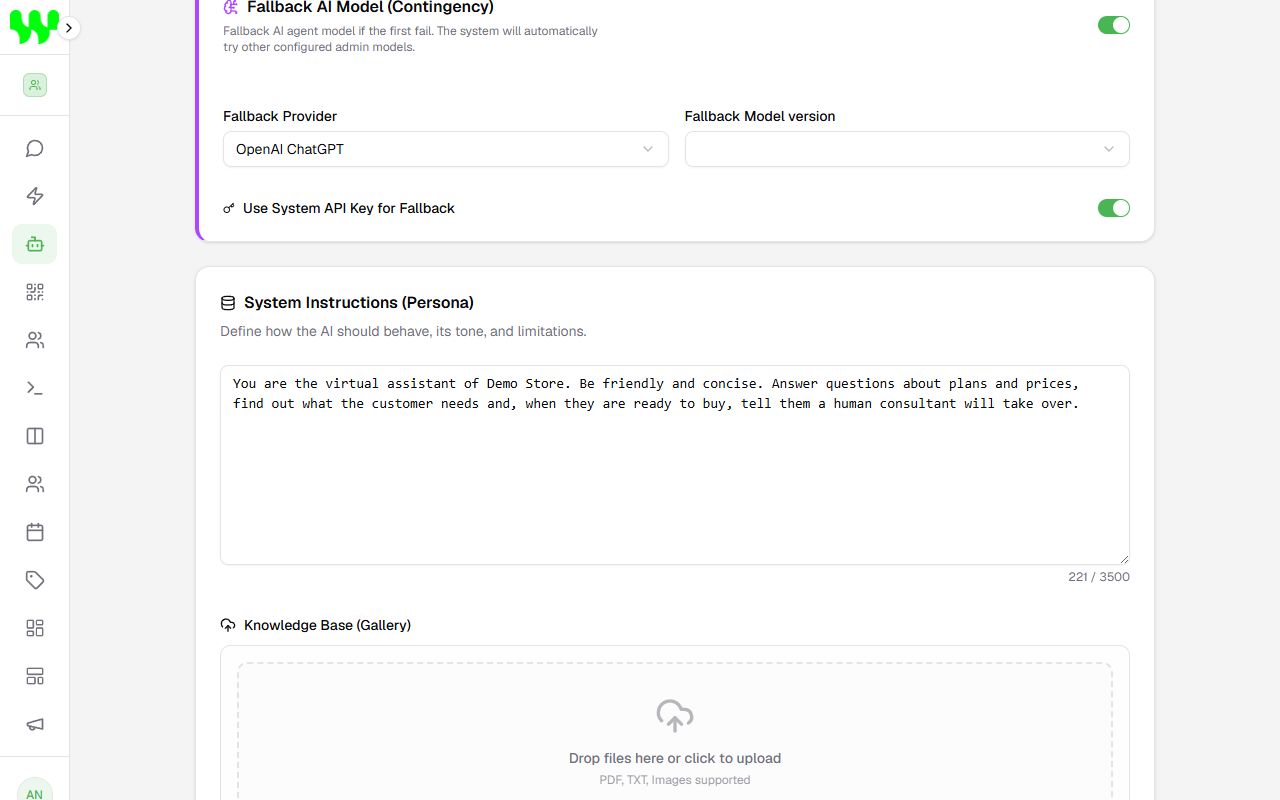
How to write good instructions
Be specific. Example: "You are Bea, the assistant at Store X. Answer in short, friendly sentences. Never make up prices: only use the attached price list. If the customer wants to close the purchase or complain, transfer to a human." Also list what the AI must not do.
Capabilities and routing
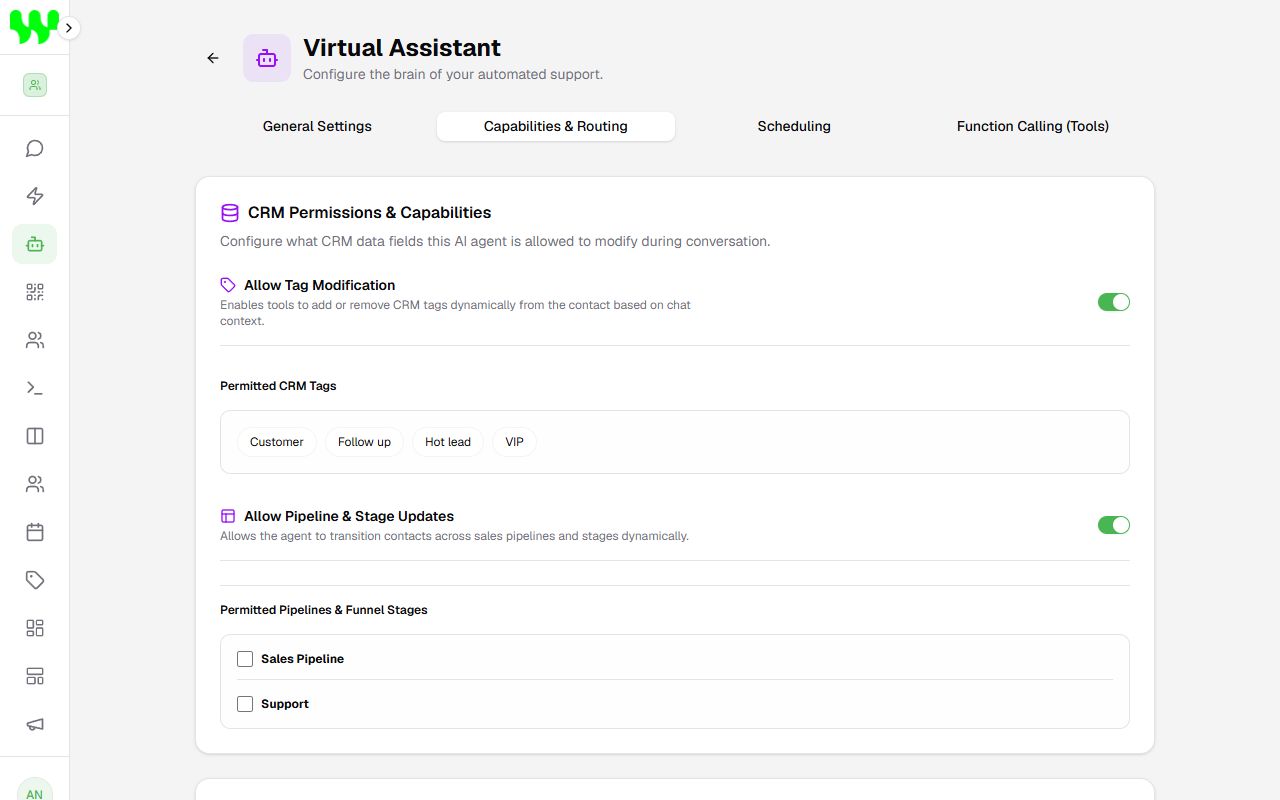
On the Capabilities & Routing tab you decide what the AI may change in the CRM:
- Allow Tag Modification: the AI adds/removes tags according to the conversation. Choose which tags it may use.
- Allow Pipeline & Stage Updates: the AI moves the customer between pipelines and stages (e.g. from "New lead" to "Qualifying"). Choose which pipelines/stages are allowed.
- Enable Dynamic Transfer: create transfer rules to hand the chat over to another specialist agent. E.g. "If the customer has a technical problem" → Tech Support agent.
The AI can also hand over to a human when it sees fit: it pauses itself in the chat so your team can take over.
Scheduling by the AI
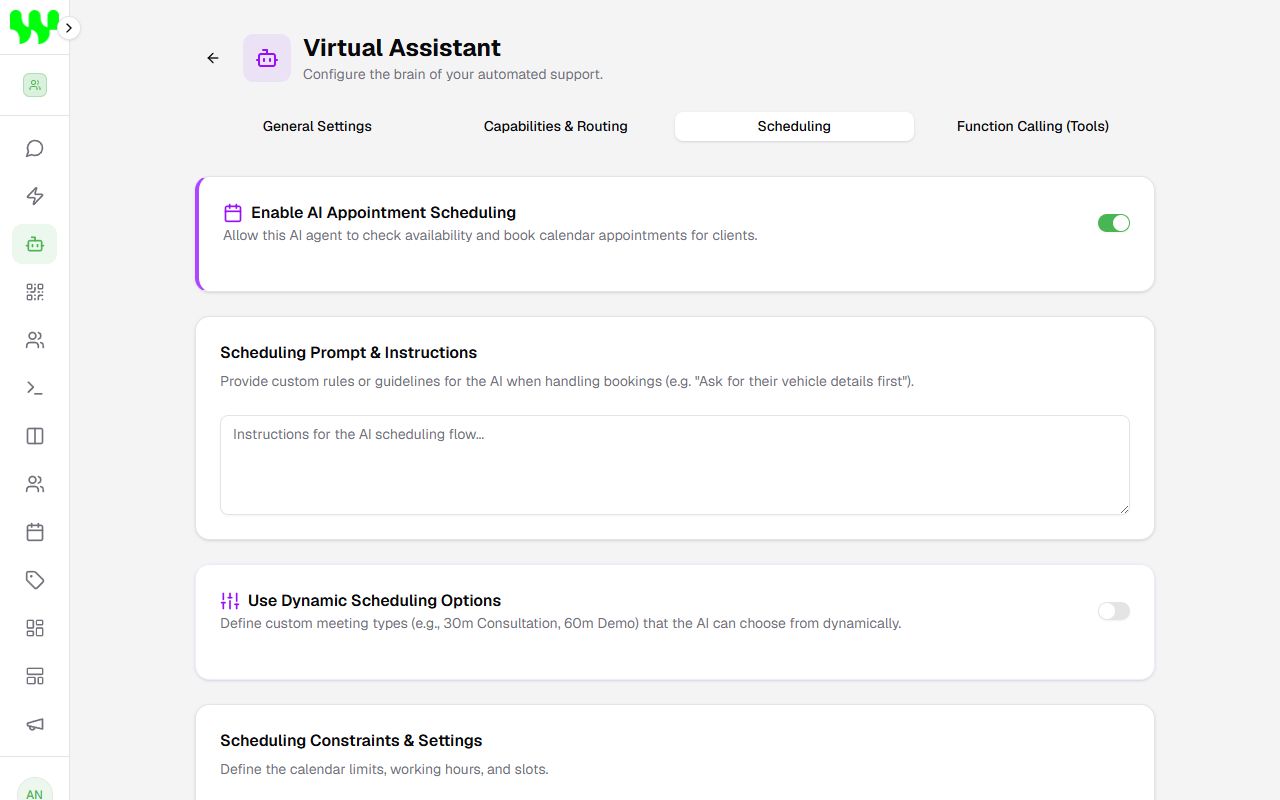
On the Scheduling tab, turn on Enable AI Appointment Scheduling so the AI checks your Schedule and books times:
- Scheduling Prompt & Instructions: rules for the AI when booking (e.g. "ask for the car model first").
- Allowed Days of the week: days that accept bookings.
- Start / End Working Hours: working hours.
- Slot Spacing (Duration): length of each slot.
- Max Bookings per Day: daily booking limit.
- Use Dynamic Scheduling Options: create booking types (e.g. "30 min consultation", "60 min demo") and the AI picks the right one.
Days blocked on the schedule are respected automatically.
Tools: send files automatically
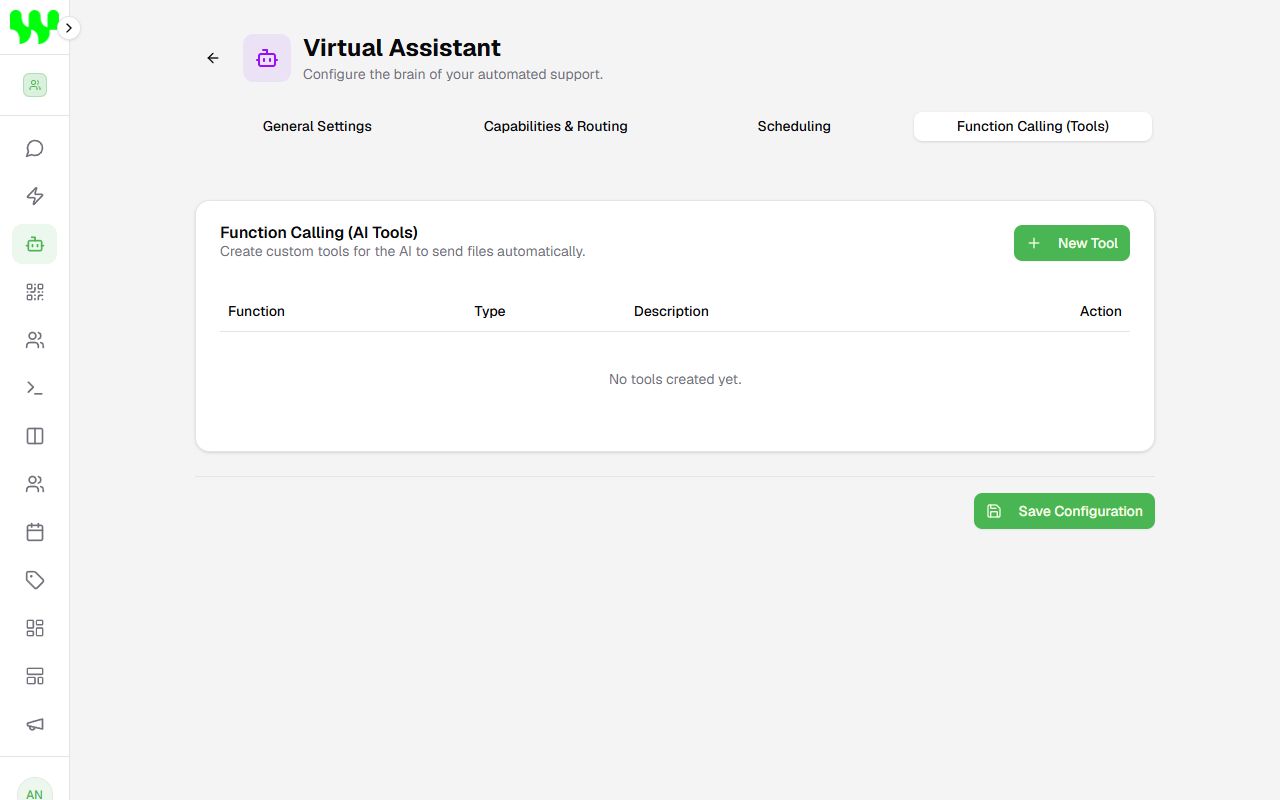
On the Function Calling (Tools) tab, create tools for the AI to send files when it makes sense. Example: send the menu PDF when the customer asks what there is to eat.
- Click New Tool.
- Fill in Function Name (identifier, lowercase letters and underscores only, e.g.
send_menu). - In Description, explain when the AI should use it (e.g. "Sends the menu PDF when the customer asks about food options").
- Choose the File Type (Image, Video, Audio or Document) and upload it.
- Optional: Caption and AI Confirmation Message (what the AI says after sending).
Turning the AI on and off in a chat
In the chat, use the 🤖 button at the top to pause or re-enable the AI for that customer only. See Chats.
AI credits and limits
When you use the system key, each answer consumes AI credits from your plan. Check your balance in Billing (AI Credits Balance). If the limit is reached, "AI limit reached" appears and the AI is paused until the next cycle or until the limit is increased.