-1.png)
Contacts is your CRM: the list of all leads and customers, with everything you know about each one.
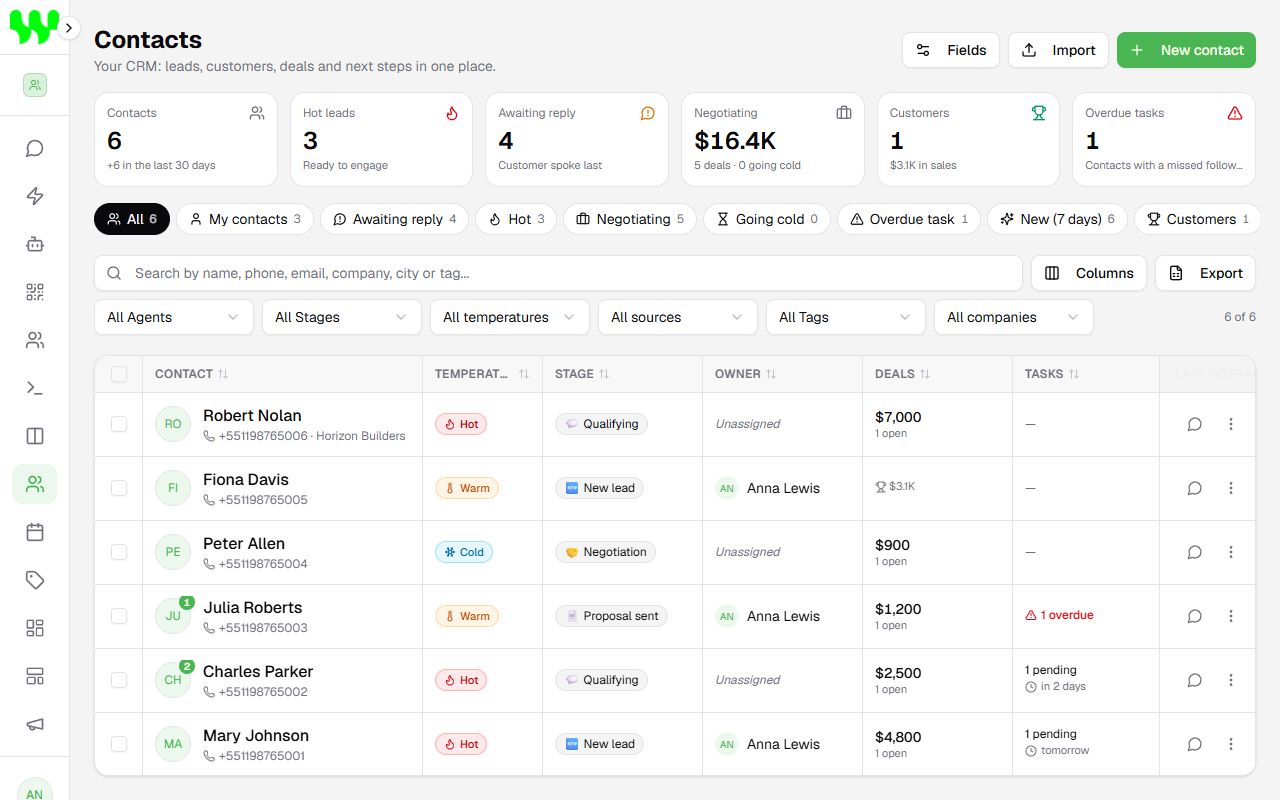
Top indicators
| Card | Meaning |
|---|---|
| Contacts | Total base and how many arrived in the last 30 days. |
| Hot leads | Contacts with Hot temperature, ready to engage. |
| Awaiting reply | Chats where the customer spoke last — someone needs to answer. |
| Negotiating | Sum of open deals and how many are going cold (stalled). |
| Customers | Contacts who already bought and the total sold. |
| Overdue tasks | Contacts with a missed follow-up. |
Quick views
The buttons below the indicators are filter shortcuts: All, My contacts, Awaiting reply, Hot, Negotiating, Going cold, Overdue task, New (7 days), Customers and Unassigned. The number next to each shows how many contacts are there.
Search and filter
- Search: by name, phone, email, company, city or tag.
- Filters: owner, stage, temperature, source, tag and company. Clear filters resets everything.
- Columns: choose which columns the table shows (company, email, job title, city, created date…).
- Click a column title to sort.
Temperature and source
- Temperature shows how close to buying the contact is: Hot, Warm or Cold.
- Source shows where they came from: WhatsApp (inbound or outbound), Meta Ads, Google Ads, Instagram, Website, Referral, Event, Import or Other.
Both feed the Dashboard reports.
Add a contact
- Click New contact.
- Fill in the Name and WhatsApp (with country and area code, digits only, e.g.
15551234567). Other fields are optional. - Click Create contact.
The chat is linked to the contact automatically as soon as they talk to you on WhatsApp.
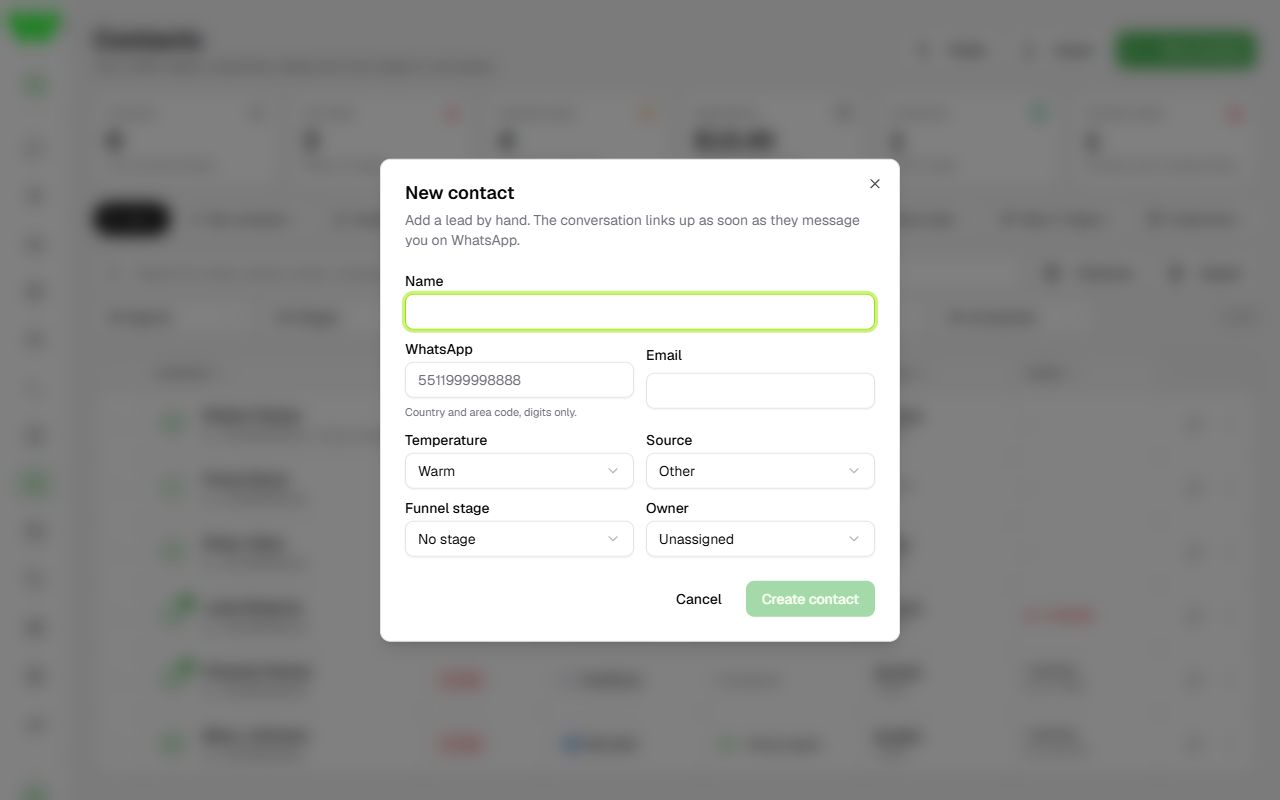
Contacts are also created automatically
When the AI serves someone, or when you click Save Contact to CRM in a chat, the contact is created automatically.
The contact record
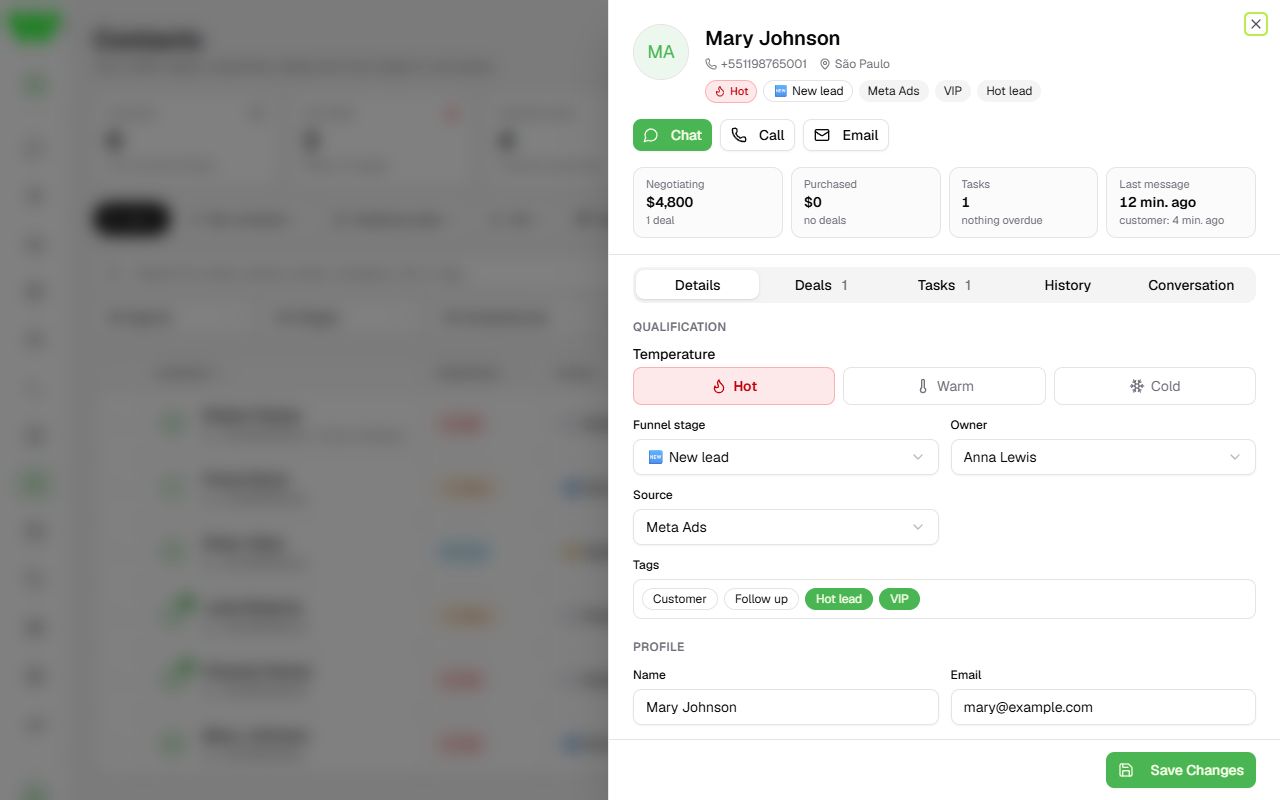
Click a contact's name to open the full record:
- Chat, Call and Email: shortcuts to reach the customer.
- Summary: value negotiating, how much they purchased, tasks and last message.
- Tabs:
- Details: temperature, pipeline stage, owner, source, tags, profile (name, email, job title, company, city), custom fields and notes.
- Deals: the contact's deals; create one with New deal for this contact.
- Tasks: next steps with a due date (e.g. "Send proposal"). Mark them complete when done.
- History: everything that happened with the contact.
- Conversation: the latest messages, with a Reply in chat button.
After editing, click Save Changes.
Bulk actions
Tick the box to the left of several contacts (or Select all). A bar appears to change at once the Owner, Stage, Temperature, add/remove tags or Delete.
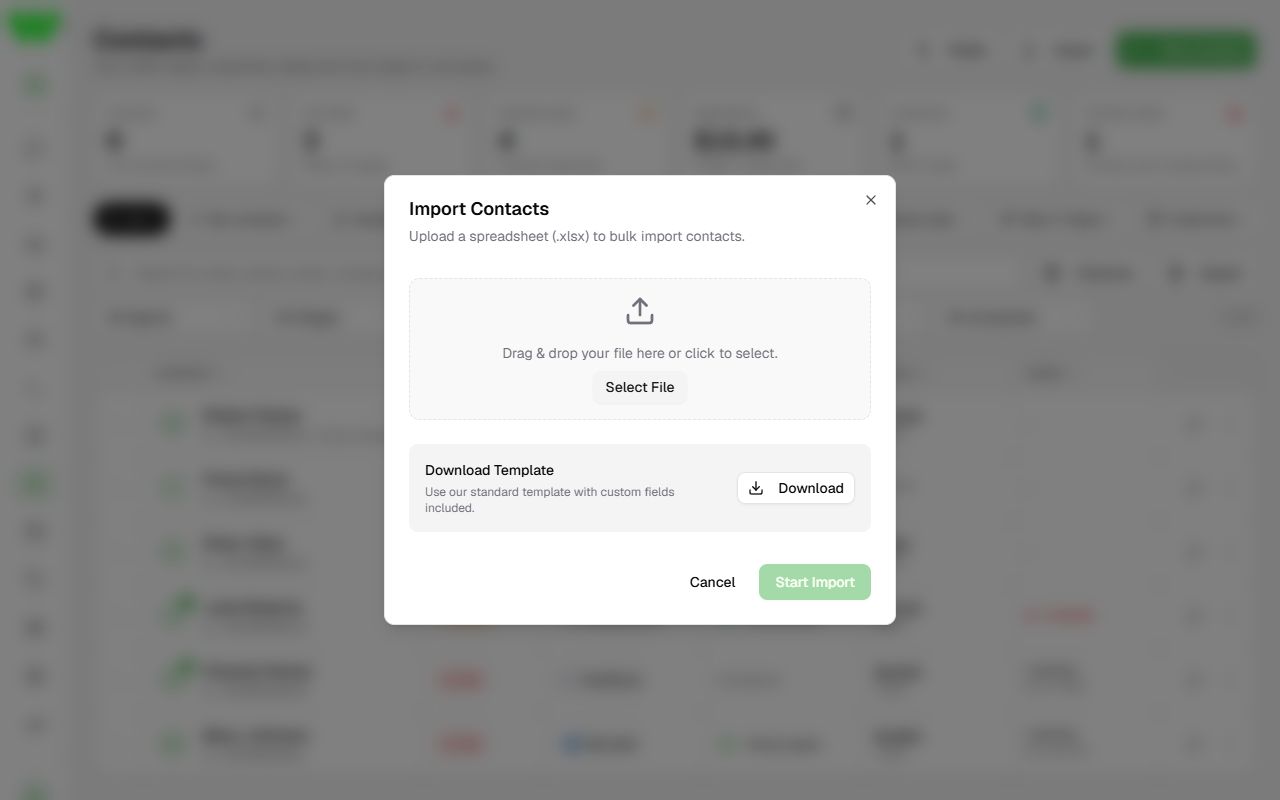
Import contacts from a spreadsheet
- Click Import.
- Click Download to get the spreadsheet template (it already includes your custom fields).
- Fill in the spreadsheet in Excel or Google Sheets and save it as .xlsx.
- Drag the file into the window (or click Select File) and click Start Import.
At the end, the system tells you how many contacts were imported and how many failed.
Export
Click Export to download the contacts on screen (respecting the applied filters) as a spreadsheet.
Custom fields
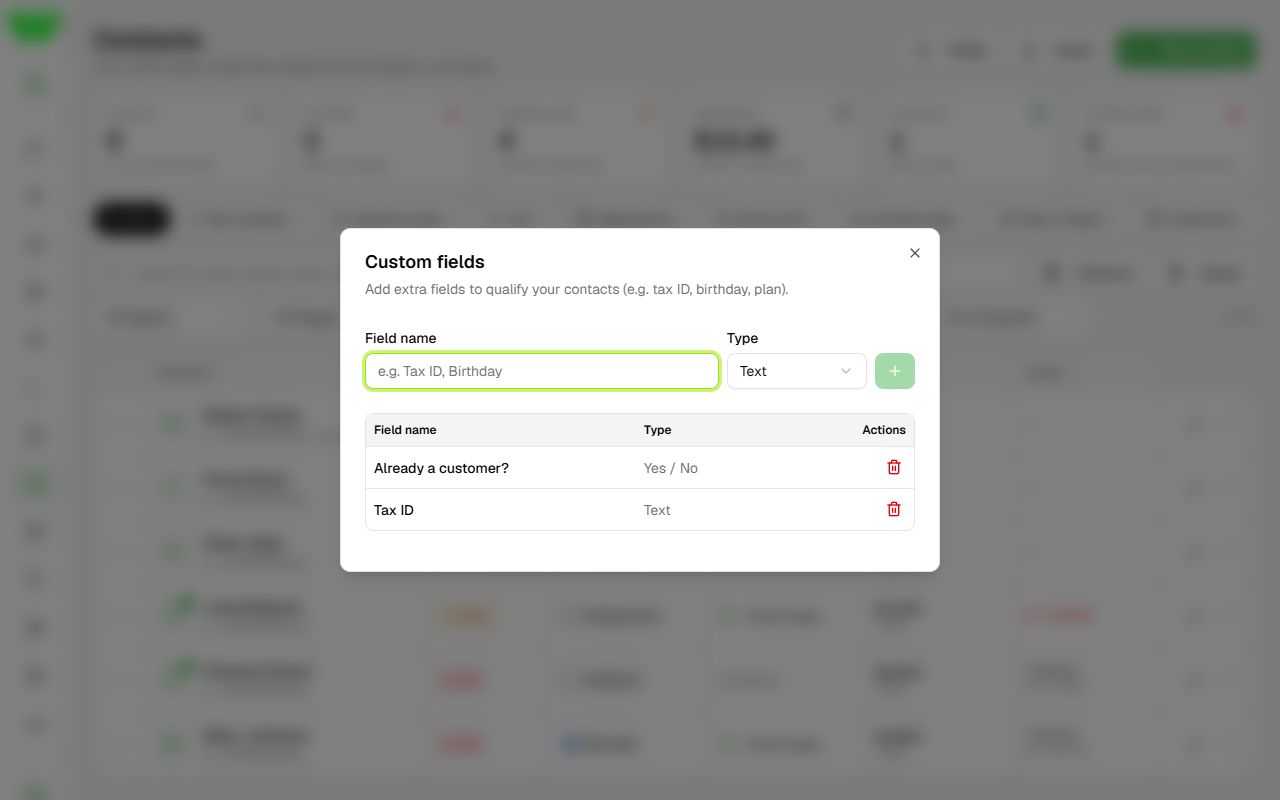
Need to store a tax ID, birthday or subscribed plan? Create custom fields:
- Click Fields.
- Type the Field name and choose the Type: Text or Yes / No.
- Click Add field.
The fields appear in the contact record, in the chat side panel and in the import template. Automations can also fill them (Save Contact block).
Delete contacts
Use the ⋮ menu on the contact's row and Delete. Tick Delete chat messages too if you want to remove the chat as well. This cannot be undone.