-1.png)
The API lets other systems send messages through your connected WhatsApp. Examples: notify the customer when the order ships, send an invoice generated by your ERP, or integrate with Zapier, Make or n8n.
Who this page is for
This part is technical. If you don't code, forward this article to the person who handles your company's integrations.
1. Create an API key
- Open Developers and click Create New Key.
- Give it a name to identify where it will be used (e.g. "Zapier").
- Copy the key now — for security, it won't be shown in full again.
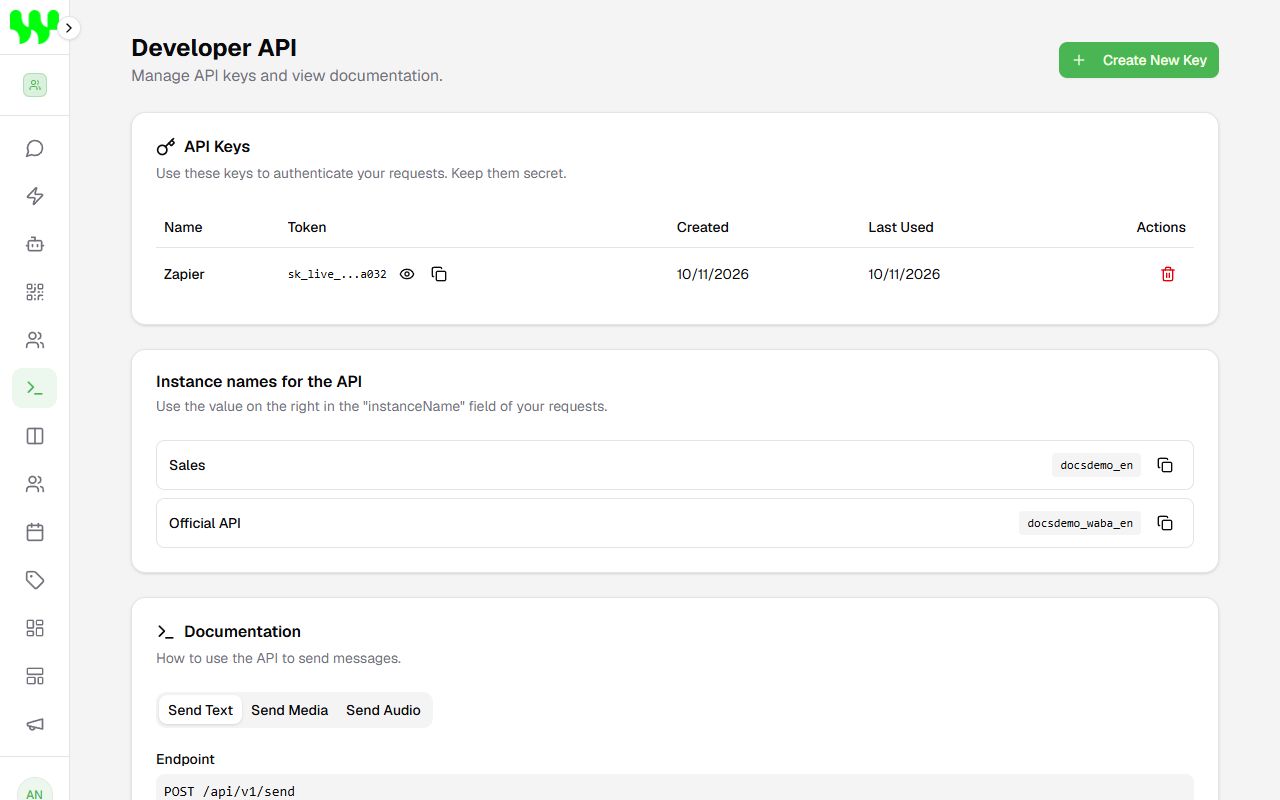
To disable a key, click the trash can (revoke). Any system using that key stops working immediately.
Keep the key secret
Anyone with the key can send messages on behalf of your business. Never put the key in website code visible to the public.
2. Find the instance name
On the same page, the Instance names for the API box shows each connected number and the technical value (e.g. inst_3f9a...) that goes in the instanceName field. Click the copy icon.
3. Send a message
Endpoint: POST https://YOUR-DOMAIN/api/v1/send
Headers:
Authorization: Bearer YOUR_KEYContent-Type: application/json
Body fields (JSON):
| Field | Required | Description |
|---|---|---|
instanceName | Yes | Technical instance name (step 2). |
number | Yes | Recipient number with country and area code, digits only (e.g. 15551234567). |
type | Yes | text, image, video, document or audio. |
message | For text | The message text. For media types, it becomes the caption. |
mediaUrl | For media | Public (https) link to the file. |
fileName | No | File name (useful for documents). |
mimetype | No | File type, e.g. application/pdf, image/jpeg. |
Example: text
curl -X POST "https://YOUR-DOMAIN/api/v1/send" \
  -H "Authorization: Bearer YOUR_KEY" \
  -H "Content-Type: application/json" \
  -d '{
    "instanceName": "inst_3f9a...",
    "number": "15551234567",
    "type": "text",
    "message": "Hi! Your order has shipped."
  }'
Example: PDF document
curl -X POST "https://YOUR-DOMAIN/api/v1/send" \
  -H "Authorization: Bearer YOUR_KEY" \
  -H "Content-Type: application/json" \
  -d '{
    "instanceName": "inst_3f9a...",
    "number": "15551234567",
    "type": "document",
    "mediaUrl": "https://example.com/invoice-123.pdf",
    "fileName": "invoice-123.pdf",
    "mimetype": "application/pdf",
    "message": "Here is your invoice"
  }'
Example: audio
{
  "instanceName": "inst_3f9a...",
  "number": "15551234567",
  "type": "audio",
  "mediaUrl": "https://example.com/message.mp3"
}
Messages sent through the API appear normally on the Chats screen.
Responses
| Code | Meaning |
|---|---|
200 | Sent. Body: { "success": true, "data": { ... } }. |
400 | Invalid data (e.g. missing message or mediaUrl). The details field explains the error. |
401 | Missing or invalid key. |
404 | Instance not found in this team, or disconnected. |
500 | Sending failed (e.g. number without WhatsApp, instance offline). See details. |
Sending through the Official API
If the instance uses the Official API (WABA), remember the 24-hour rule: outside the window, Meta only accepts approved templates. See Message templates.