-1.png)
This guide takes you from zero to the system's main screen, ready to connect WhatsApp.
1. Create your account
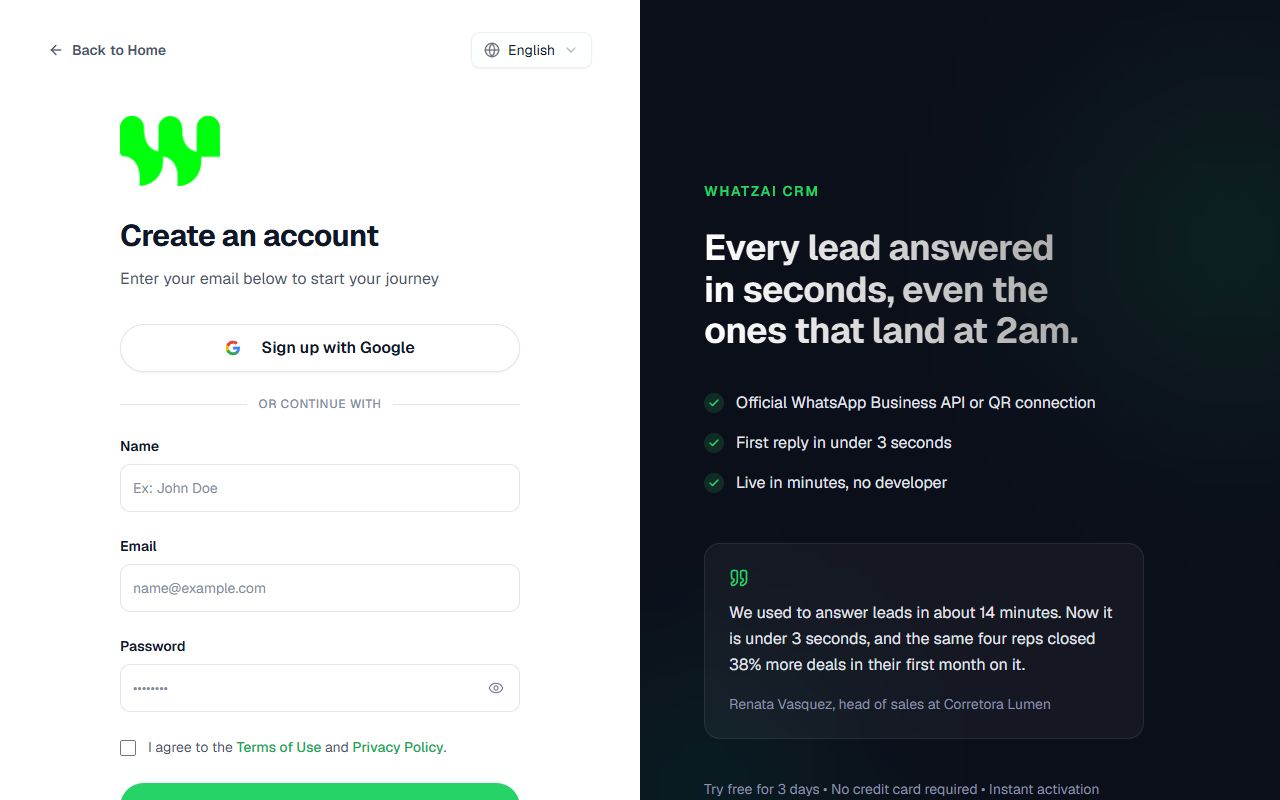
- Open the sign-up page.
- Choose your language in the window that appears and click Confirm Language.
- Fill in Name, Email and Password (at least 8 characters) and agree to the Terms.
- Click Sign up. If you prefer, use Sign up with Google, which needs no password.
Already have an account?
Log in on the sign-in page. If you forgot your password, see I forgot my password.
2. Take the welcome tour
After signing up, a short tour shows the main features. Read it or skip it; you can see it again later through the information icon (ⓘ) at the top of the chat list.
3. Create your team (workspace)
Everything in the system belongs to a team: chats, contacts, bots and WhatsApp numbers. The first time you log in you will see Welcome to Your New Workspace!
- Click Create Your First Team.
- Give it a name (e.g. "Downtown Store", "Sales Team").
- Choose a workspace template or Start from Scratch:
- Templates come with pipelines, stages, tags and even AI agents ready for your type of business.
- Start from Scratch creates an empty workspace for you to set up your way.
- Click Create Team.
Tip
Start from a template if you are in a hurry. You can rename or delete any stage, tag or agent later.
You can have several teams (for example, one per store) and switch between them. See Team and permissions.
4. Activate a plan or free trial
Features such as connecting WhatsApp, AI Agents and automations require an active plan. If your account has no plan yet, the Unlock the Full Power window appears when you try to use them, with two options:
- Request Free Trial: fill in a short form and the trial is usually released right away.
- View Plans & Subscribe: choose a plan and pay securely by card.
Details in Plans and billing.
5. Adjust the basics
Before you start, check in Settings:
- Application Language: Portuguese, English or Spanish.
- Workspace Timezone: important for appointment times, reports and automations.
And in My Team, the currency used for deal values ($, R$, € etc.).