-1.png)
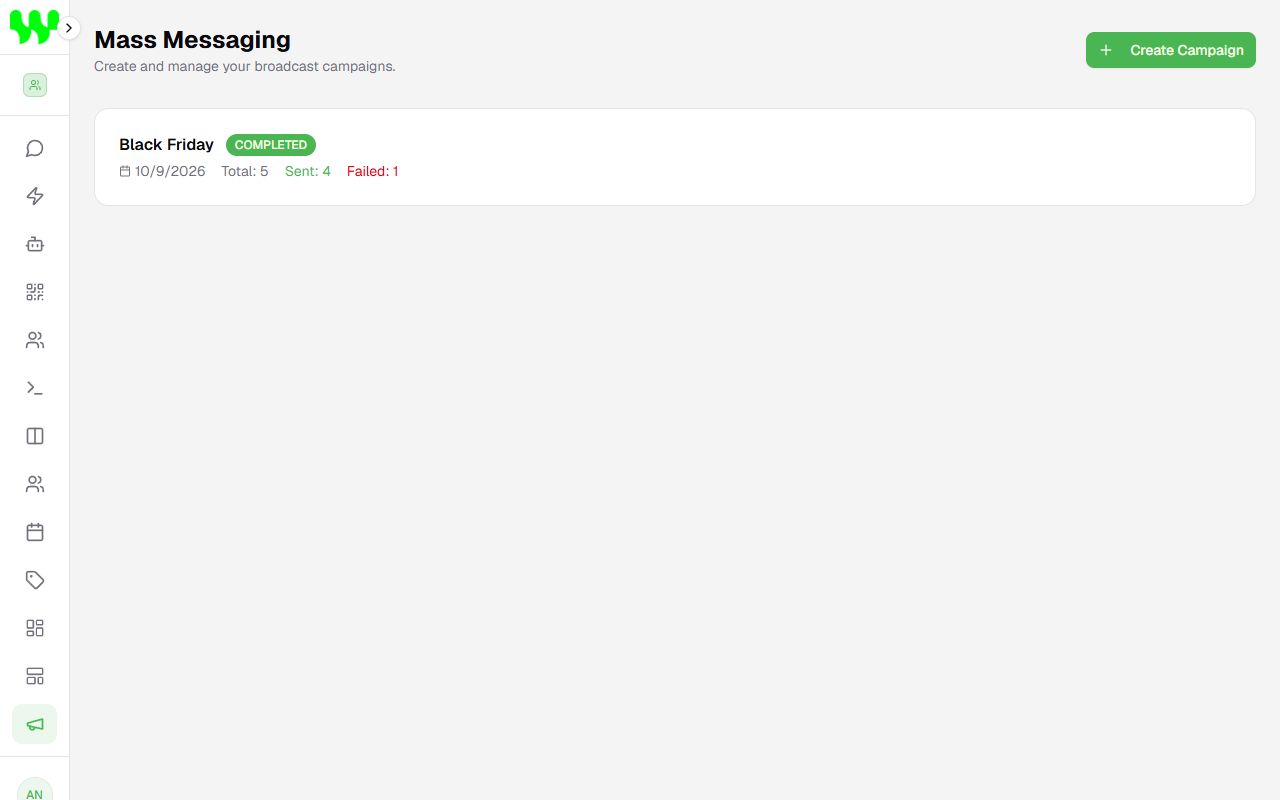
In Campaigns you send the same message to many people at once — a promotion, a notice or a reminder. Campaigns use the Official API (WABA) and an approved template, which is the safe, Meta-approved way to send bulk messages.
Before you start
You will need:
- A connected Official API instance. See Connect your WhatsApp.
- An approved template. See Message templates.
- A CSV spreadsheet with the numbers.
How to build the spreadsheet
- The first row is the header.
- A required column called phone, with numbers including country and area code, digits only (e.g.
15551234567). - If the template has variables, create columns called 1, 2... They fill
{{1}},{{2}}... in the template.
Example (for the template "Hi {{1}}, your appointment is on {{2}}"):
phone,1,2
15550000001,Mary,Oct 12 at 2pm
15550000002,Charles,Oct 13 at 9am
In Excel or Google Sheets, use File › Save as / Download › CSV.
Create a campaign
- Click Create Campaign.
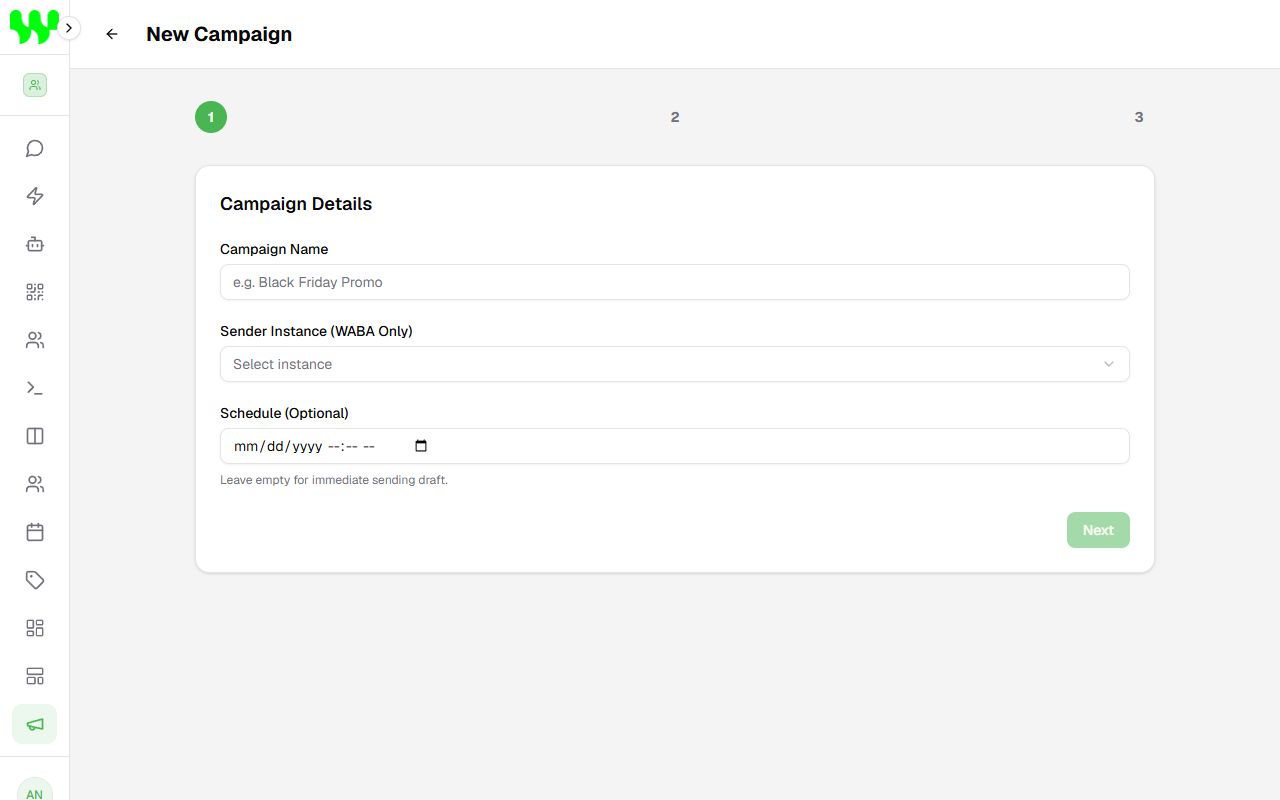
- Details: give it a Campaign Name and choose the Sender Instance (WABA Only). Click Next.
- Leads: click Click to upload CSV and pick your spreadsheet. The system shows how many contacts were loaded. Click Next.
- Content: choose the template in Select Template and check the preview.
- Click Finish & Create.
Send it
The campaign is created as a draft (DRAFT). In the campaign list, click Start Now to begin sending. The system sends in batches, in the background — you can close the page.
About the "Schedule" field
The date entered in Schedule (Optional) is stored with the campaign, but sending only starts when you click Start Now. Click it at the time you want to send.
Track the results
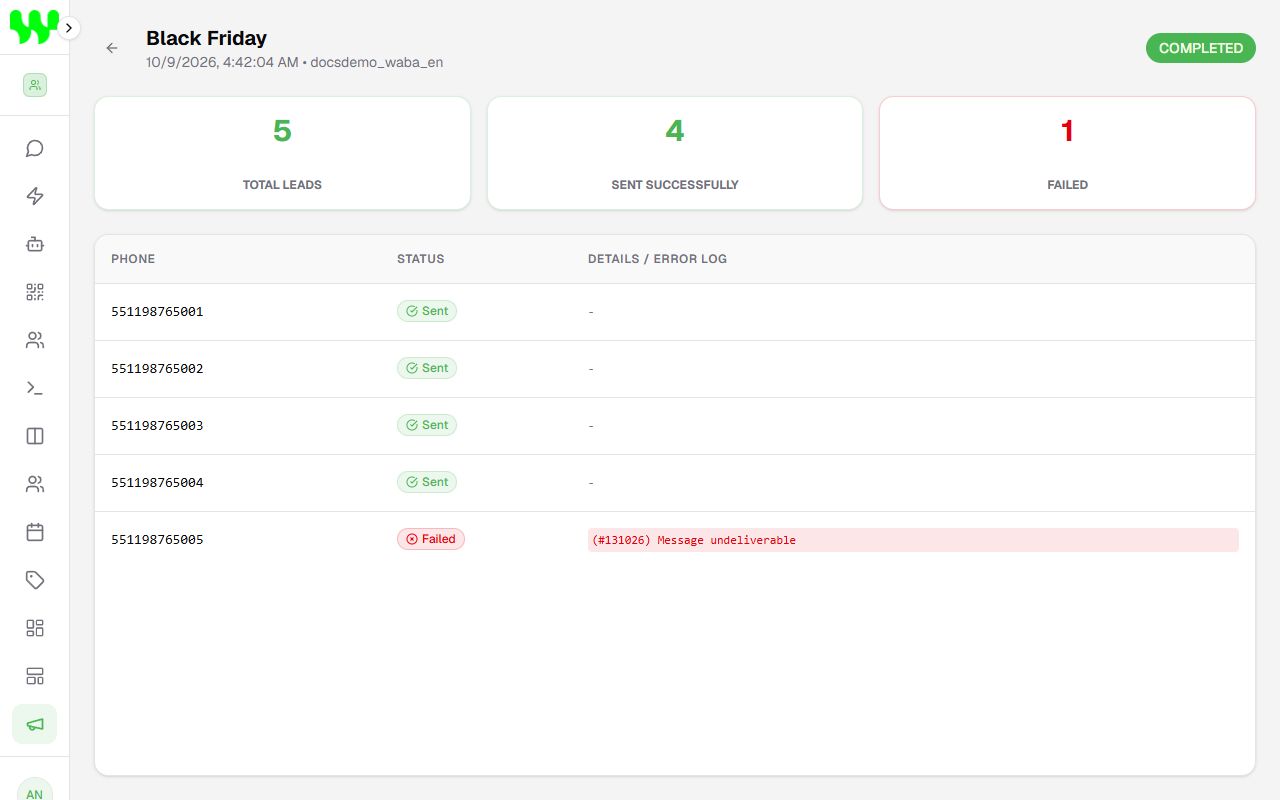
Click a campaign to see its details:
- Total Leads, Sent Successfully and Failed.
- The list of each phone with status Sent, Pending or Failed, and the error reason under Details / Error Log.
Good practices
- Only send to people who agreed to receive messages from your business.
- Start with smaller lists: Meta unlocks higher daily limits (1k, 10k, 100k contacts per day) as your number's quality improves.
- Common errors: invalid number or no WhatsApp, paused/rejected template and Meta daily limit reached.