-1.png)
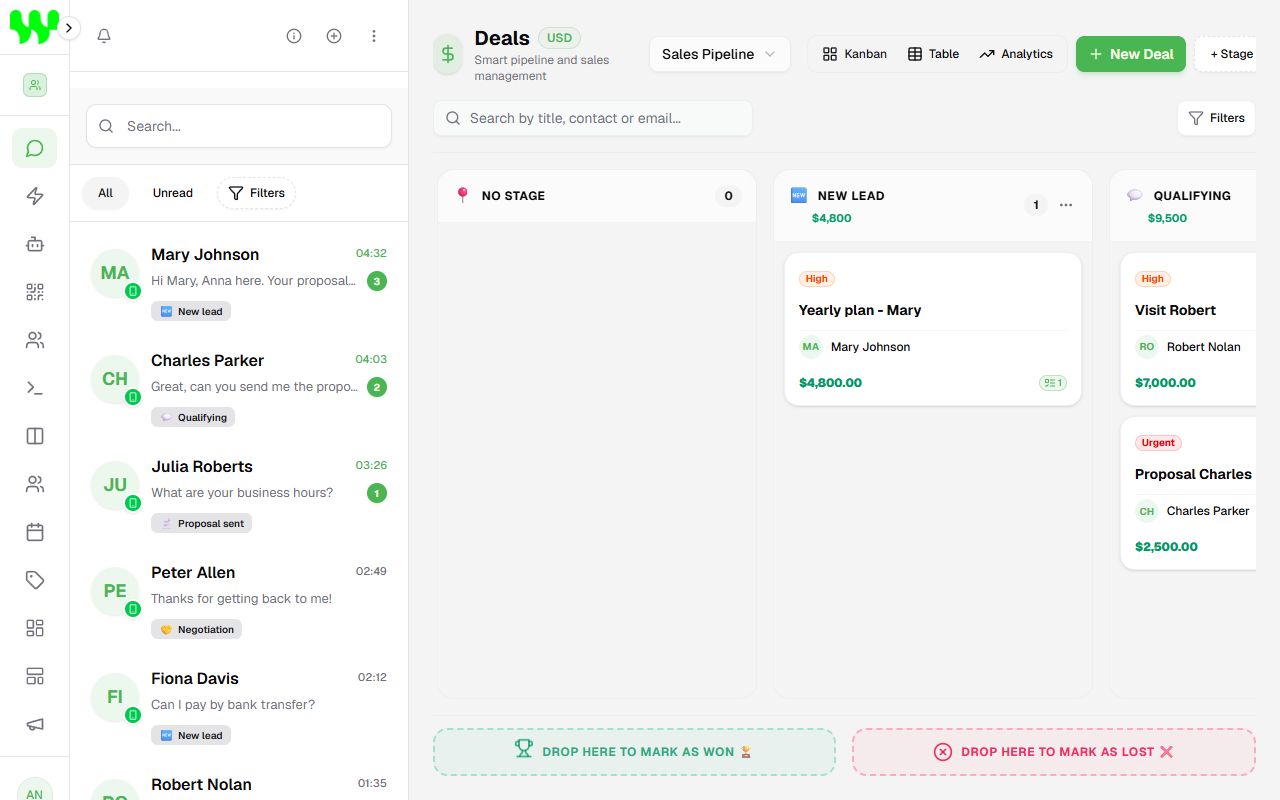
A pipeline (or funnel) is a board with columns, like a wall of sticky notes. Each column is a stage (e.g. "New lead", "Proposal sent", "Negotiation") and each card is a deal — a sales opportunity linked to a customer.
Create a pipeline
- Open Pipelines and click New Pipeline.
- Give it a name (e.g. "Sales Funnel").
- Choose the Board type:
- Sales: deals with values, Won/Lost and revenue analytics.
- Support: tickets with agents, waiting timers and resolution analytics (ideal for customer service).
- Click Create Pipeline.
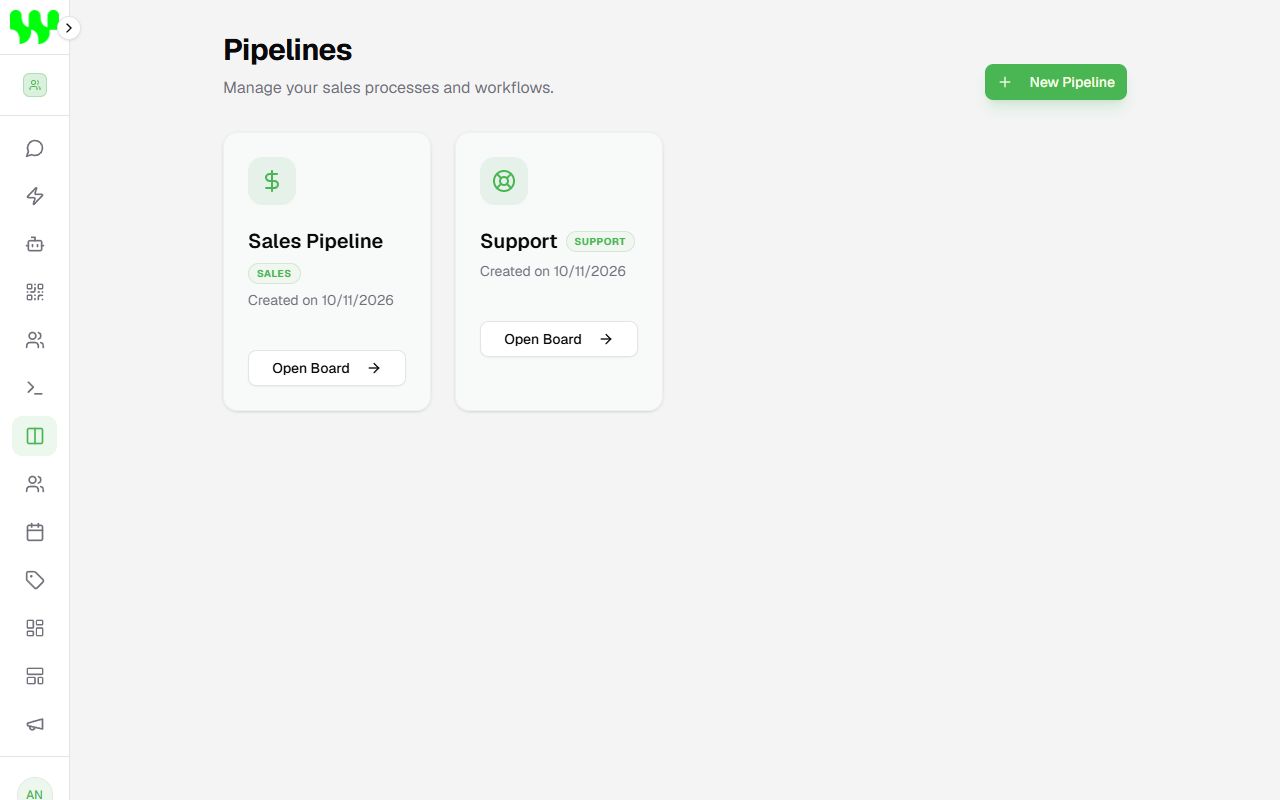
To edit or delete, hover over the pipeline card and use the pencil and trash icons. A pipeline can only be deleted when empty (no contacts). Changing the board type deletes nothing: only labels, indicators and analytics change.
Click Open Board to see the pipeline board.
Using the board (Kanban)
The board appears on the Chats screen, to the right of the chat list. At the top you will find:
- Pipeline selector: switches the pipeline shown.
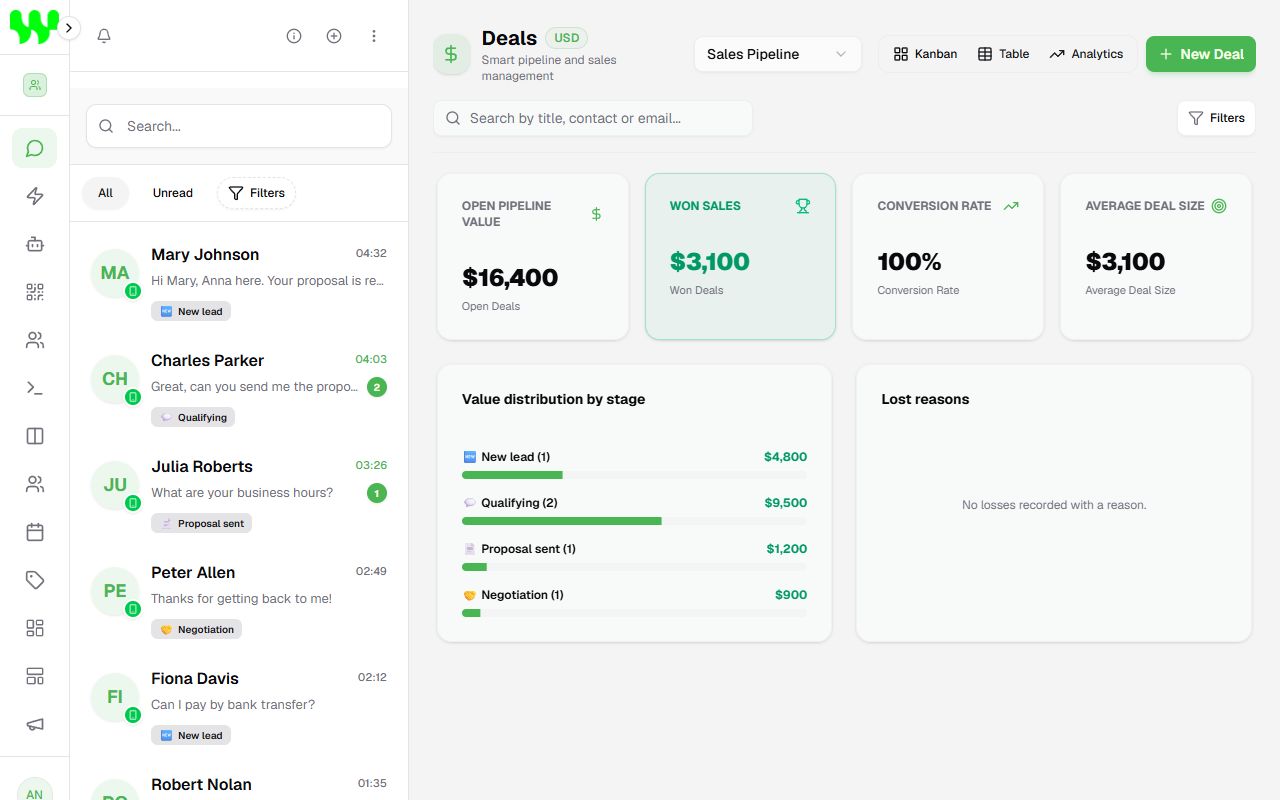
- Kanban / Table / Analytics: three ways to see the same deals.
- New Deal: creates a card.
- + Stage: creates a new column.
- Search and Filters: by title, contact, status, priority and (on support boards) assigned agent.
Stages (columns)
- Create: click + Stage, type the name and choose an emoji.
- Edit or delete: click the ⋯ at the top of the column. When deleted, its cards move to No Stage.
- The top of each column shows the number of cards and the sum of their values.
Create a deal
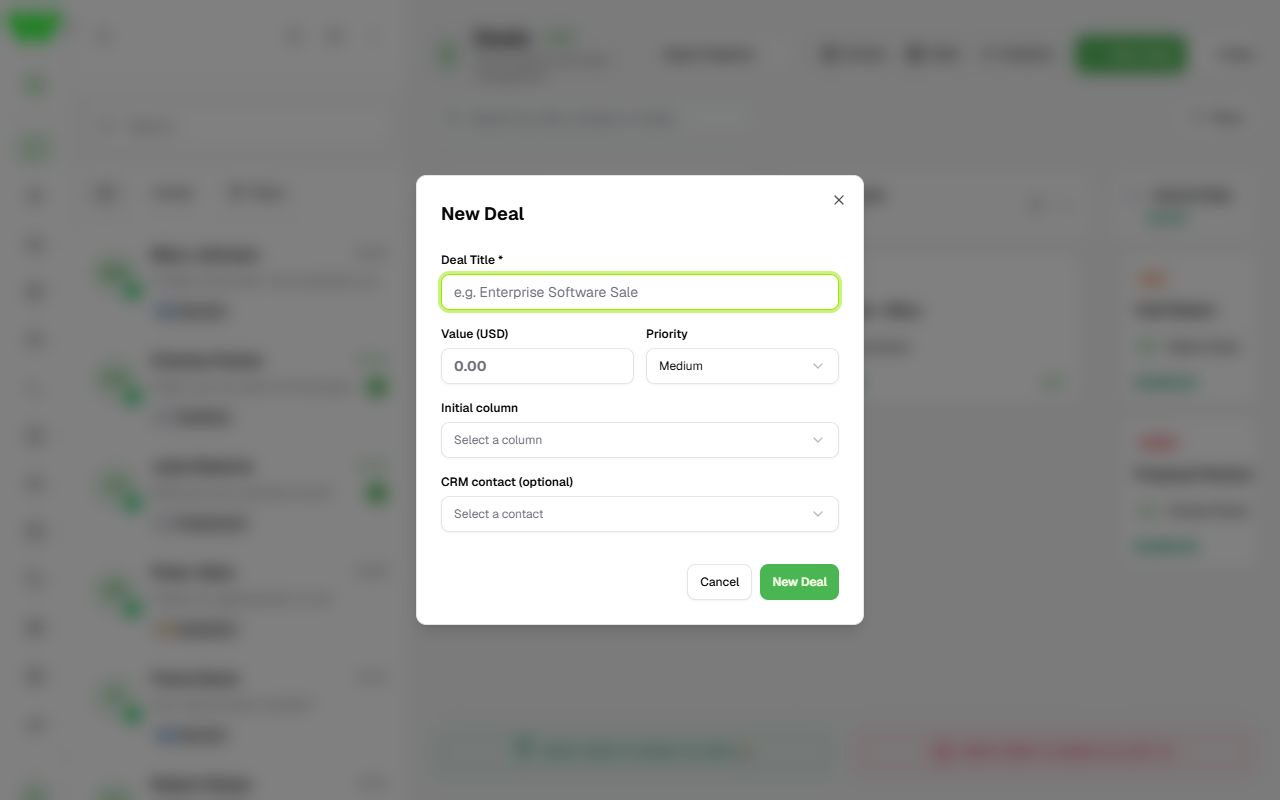
- Click New Deal.
- Fill in the Deal Title (e.g. "Yearly plan - Mary"), the Value and the Priority (Low, Medium, High, Urgent).
- Choose the Initial column and, optionally, link a CRM contact.
- Click New Deal.
Move, win and lose
- Drag the card from one column to another to change its stage.
- Drag it to "Drop here to mark as WON 🏆" (below the board) when you close the sale.
- Drag it to "Drop here to mark as LOST ❌" when you lose it. The system asks for the lost reason (price, competitor, stopped responding…), which feeds the reports.
Signals on cards
Cards show warnings such as overdue task, open tasks and stagnant for too long, so you know where to act first.
Deal details
Click a card to open the details panel, with four tabs:
| Tab | What it has |
|---|---|
| Overview | Title, value, priority, expected close date and the linked contact. Click Save changes. |
| Timeline | History of everything that happened and a field to add an internal note. |
| WhatsApp Chat | The messages exchanged with the customer (read-only; to reply, use the main chat). |
| Tasks & Reminders | Create follow-up tasks with a due date. They also appear on the Schedule. |
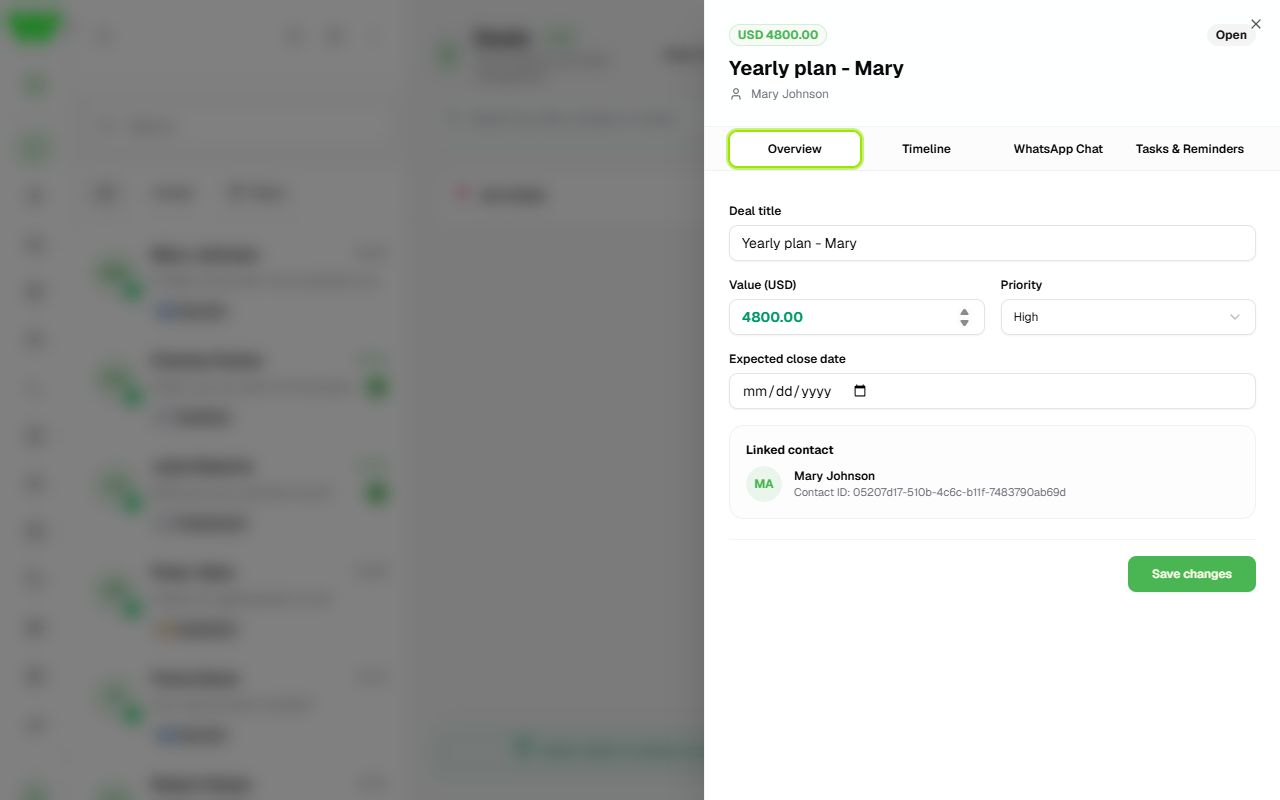
Table and Analytics views
- Table: lists all deals in rows, handy to check values and dates quickly.
- Analytics: open value, won deals, lost value, conversion rate, average ticket, value distribution by stage and lost reasons.
Support boards
On Support pipelines, cards become tickets and:
- The drop zones become RESOLVE ✅ and CLOSE without solving 📁 (with a reason).
- The Assigned agent filter lets you see only Mine or Unassigned tickets.
- Each column shows the longest wait and which customers are waiting for a reply.
- The Analytics tab shows open and resolved tickets, average resolution time and tickets per agent.
Currency
The currency of values ($, R$, €…) is set by the team owner in My Team, in the CRM Currency box.