-1.png)
Each WhatsApp number connected to the system is called an instance (or connection). You can connect as many numbers as your plan allows.
Which connection type should I choose?
| WhatsApp Web (QR code) | Official API (WABA) | |
|---|---|---|
| How it connects | Scanning a QR code with your phone, like WhatsApp Web | With your Meta (Facebook) account details |
| Setup time | 1 minute | 30 minutes or more (requires a Meta Business account) |
| Phone must stay on | Needs internet from time to time | No phone used |
| Bulk messages (Campaigns) | Not available | Available, with approved templates |
| 24-hour rule | Does not apply | Outside 24h only with an approved template |
| Best for | Getting started fast, small and medium operations | Large operations, bulk sending and maximum stability |
Not sure?
Start with WhatsApp Web. It works with the number you already use and is ready in a minute.
Connect with a QR code (WhatsApp Web)
- In the menu, open Instances and click Add Connection.
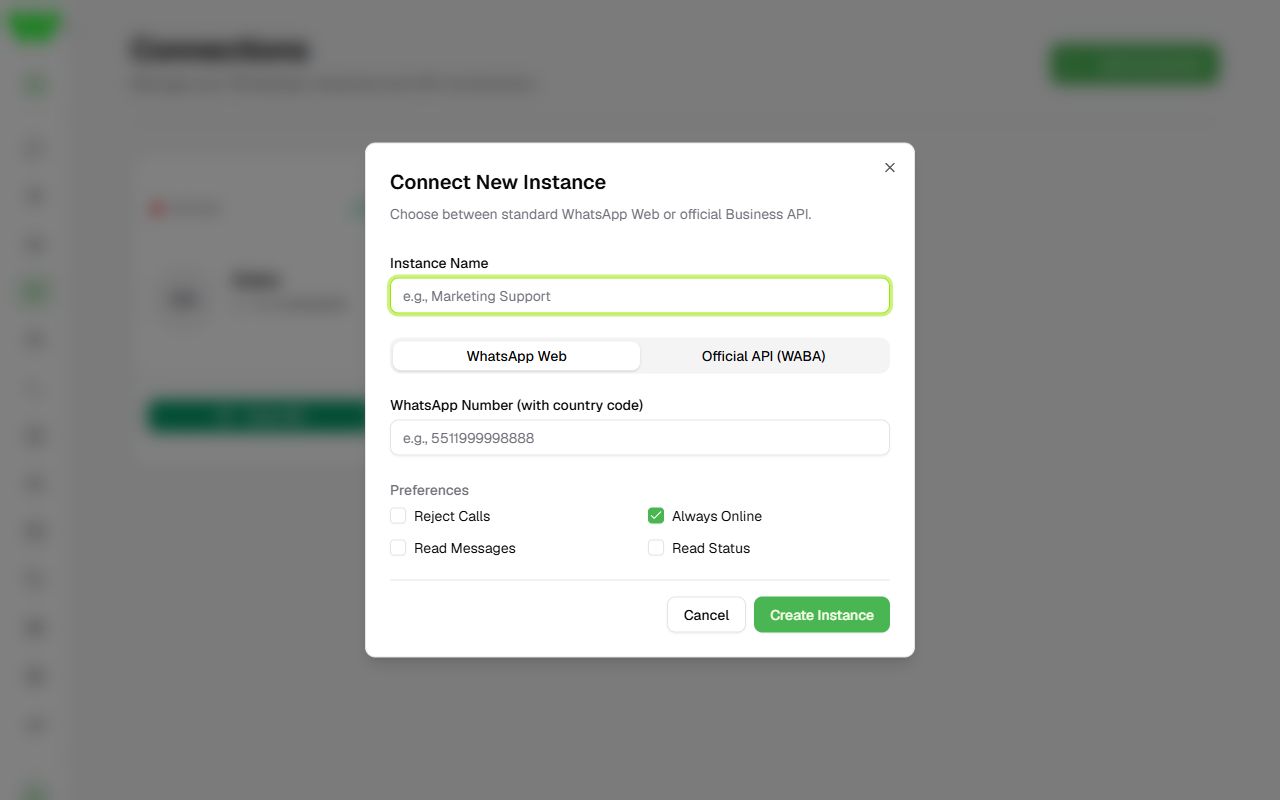
- In Instance Name, type a name to recognize this number (e.g. "Sales").
- Keep the WhatsApp Web tab selected.
- In WhatsApp Number (optional), type the number with
+and the country code, like+1 555 123 4567. You can also pick the country flag from the list. - Choose the Preferences (explained below) and click Create Instance.
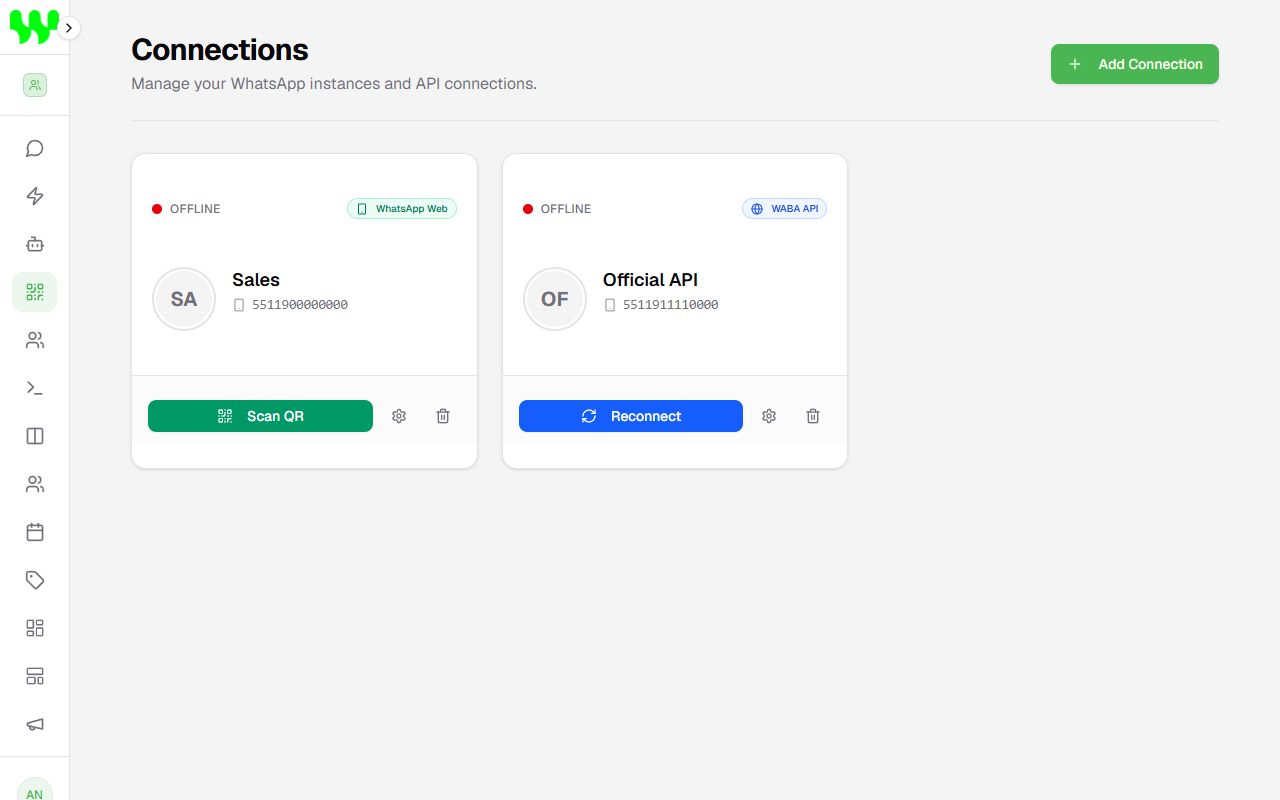
- On the instance card, click Connect.
- On your phone, open WhatsApp and go to Settings › Linked Devices › Link a Device.
- Point the camera at the QR code on the screen. In a few seconds the status changes to Online.
Connection preferences
| Option | What it does |
|---|---|
| Reject Calls | Automatically declines voice/video calls received on this number. |
| Always Online | Keeps the number showing as "online" to customers. |
| Read Messages | Marks received messages as read (blue ticks) automatically. |
| Read Status | Automatically views your contacts' status updates (stories). |
Avoid WhatsApp bans
The QR code connection uses the same mechanism as WhatsApp Web. To keep your number safe: do not send bulk messages to people who don't know your business, don't buy contact lists and prefer the Official API for bulk sending.
Connect with a pairing code (from your phone)
If you are using the system on the same phone where WhatsApp is installed, you can't scan the QR code on your own screen. Use a pairing code instead:
- On the instance card, click Connect. On a phone, the Pairing code tab opens by itself.
- Check the WhatsApp Number (with
+and the country code, e.g.+1 555 123 4567) and click Generate code. - An 8-character code appears, like
ABCD-1234. Use the copy button if you want. - On your phone, open WhatsApp and go to Settings › Linked Devices › Link a Device.
- Tap Link with phone number instead and type the code.
In a few seconds the status changes to Online and the window closes by itself.
The code lasts about 1 minute
If it expires, click Generate new code. The number must be the same one that has WhatsApp installed on the phone you are using. If the code doesn't work, use the QR Code tab from another device.
Connect via the Official API (WABA)
First you need, at Meta: an app with the WhatsApp product, a number registered in it and a System User with a permanent token. If you don't have that yet, ask support or your developer for help.
- In Instances, click Add Connection and fill in the Instance Name.
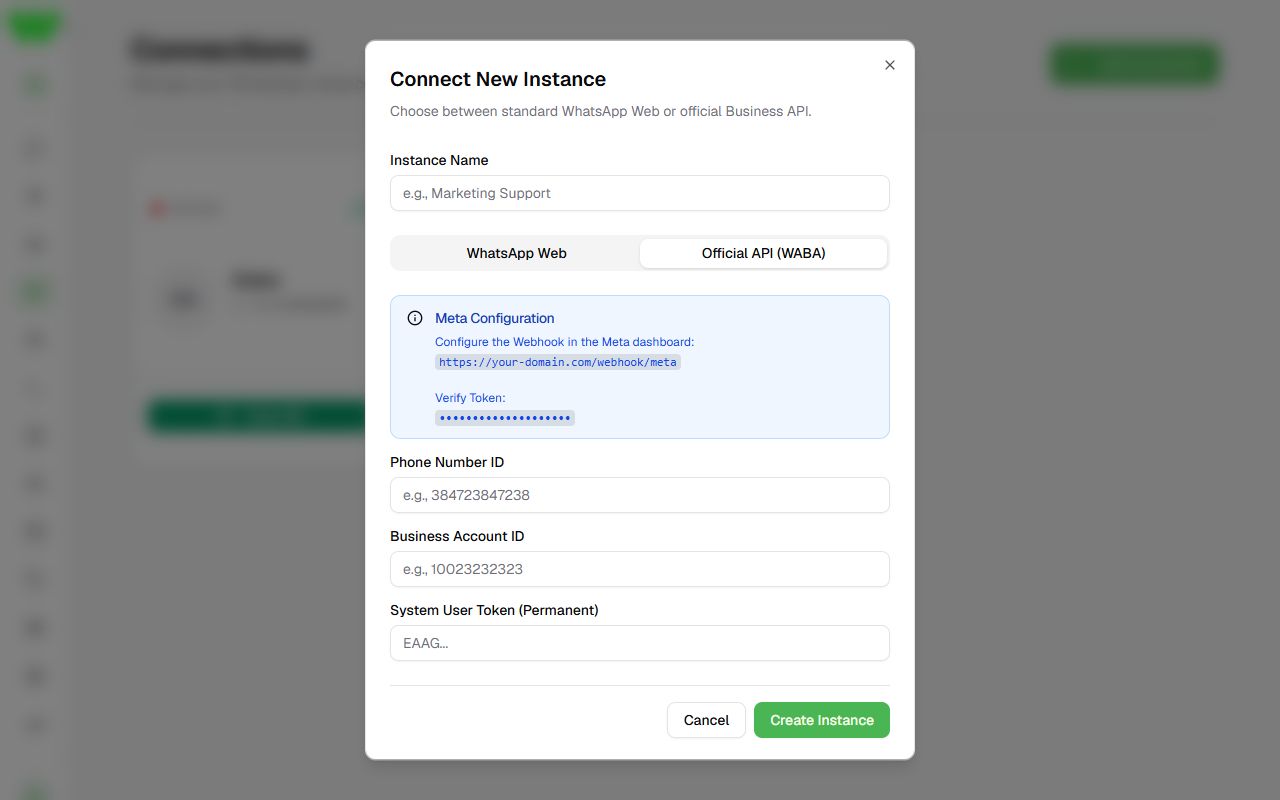
- Click the Official API (WABA) tab.
- Copy the Webhook address and the Verify Token shown in the blue box and paste them in the Meta dashboard (WhatsApp › Configuration › Webhook). Subscribe to the messages field.
- Fill in the three Meta details:
- Phone Number ID
- Business Account ID (WABA ID)
- System User Token (permanent, starts with
EAAG...)
- Click Create Instance. No QR code is needed.
A temporary token won't work
Meta's test token expires in 24 hours. Always use a System User token with expiration Never and the permissions whatsapp_business_messaging and whatsapp_business_management.
Manage a connection
On each instance card you will find:
- Connect: opens a window with the QR Code and Pairing code tabs to connect (WhatsApp Web only).
- Reconnect: tries to restore the connection without scanning the QR again.
- Logout: disconnects the number from the system (chats remain saved).
- ⚙ Gear: edits the name, preferences or Meta credentials.
- 🗑 Trash: deletes the instance. This cannot be undone.
The colored dot shows the status: green = Online, yellow = Connecting, red = Offline.
After connecting
- New messages start appearing in Chats.
- To bring older chats from your phone, use ⊕ › Import from WhatsApp. See Chats.
- Link the connection to an automation or keep an AI Agent enabled to reply.
Problems? See Troubleshooting.