-1.png)
The Chats screen is where every WhatsApp message arrives. The whole team sees the same inbox, so nobody needs to use a personal phone to serve customers.
Find a chat
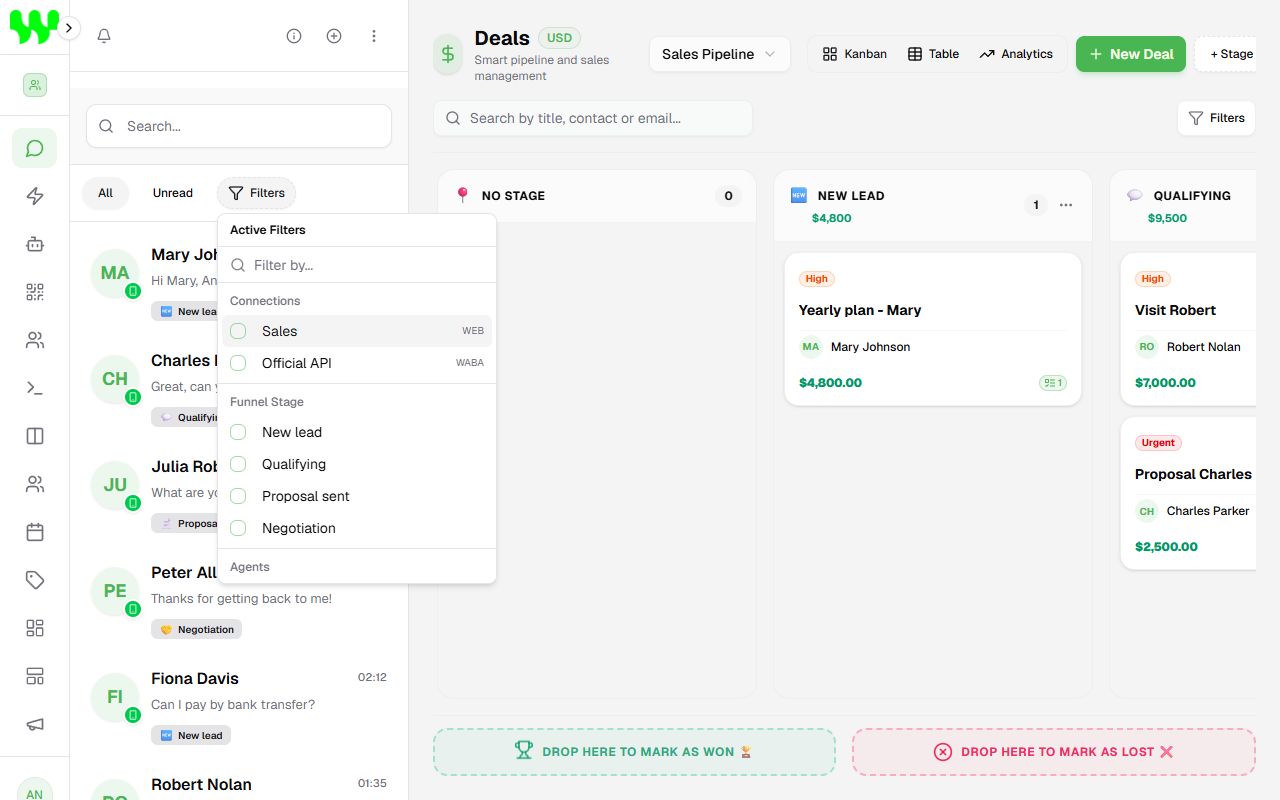
The list on the left shows the most recent chats at the top. Each item shows the customer's name, the last message, the time, a green circle with the number of unread messages and the pipeline stage the customer is in.
- Search: type a name or number in the Search... field.
- All / Unread: shows everything or only chats with new messages.
- Filters: filter by Connections (which number received it), Funnel Stage, Agents (owner) and Tags.
Reply to a customer
- Click the chat in the list.
- Type in the Type a message field and press Enter (or click send).
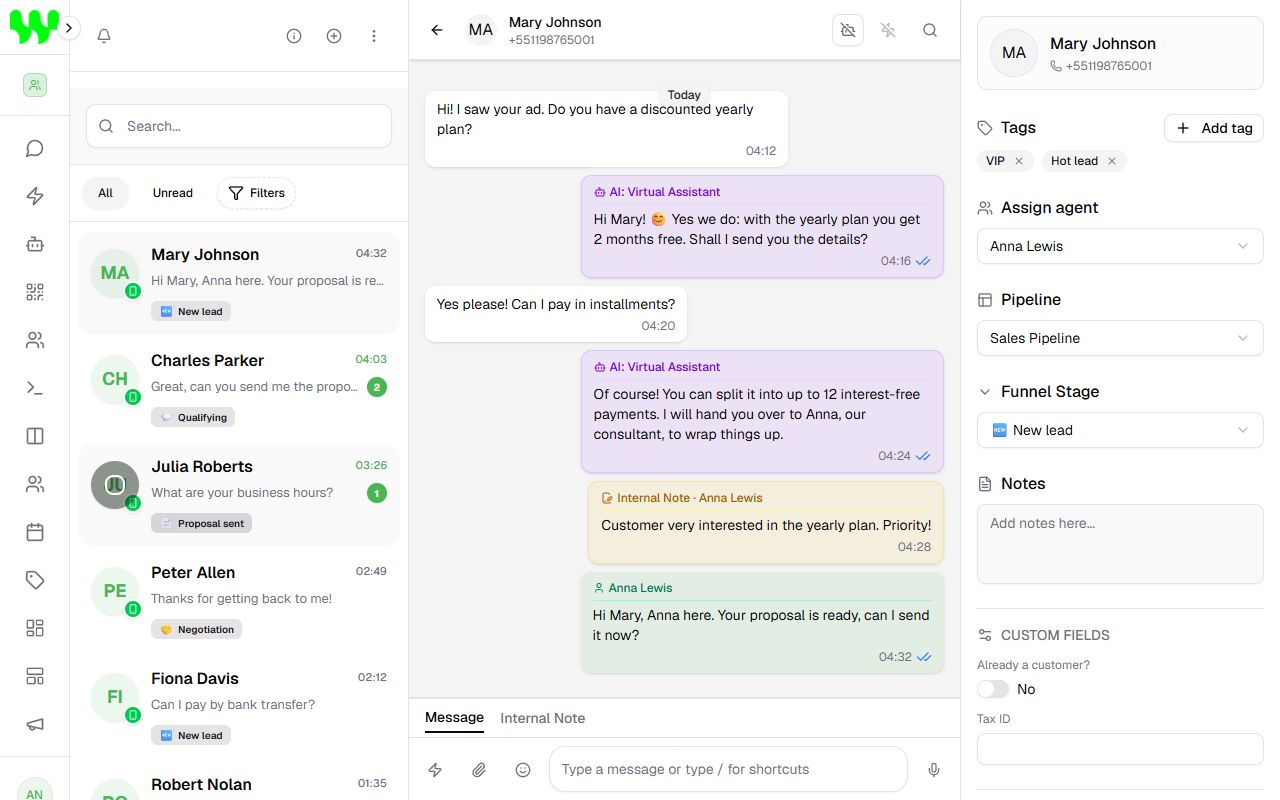
The bubble colors show who sent each message:
| Bubble | Sent by |
|---|---|
| White (left) | The customer |
| Purple, with "AI: agent name" | The AI Agent |
| Green, with the person's name | Someone from your team |
| Yellow, "Internal Note" | An internal note (the customer does not see it) |
| With the "Automation" label | A service bot (flow) |
While the AI or a flow is working, notices such as "AI is thinking..." or "Flow is processing..." appear at the top of the chat.
Send photos, videos, documents and audio
In the typing bar:
- 📎 Paperclip: choose Photos & videos or Document. Before sending, a preview appears where you can add a caption.
- 😊 Emoji: opens the emoji picker.
- 🎤 Microphone: click to record audio. Click the trash can to cancel or send to deliver it.
Quick replies (shortcuts)
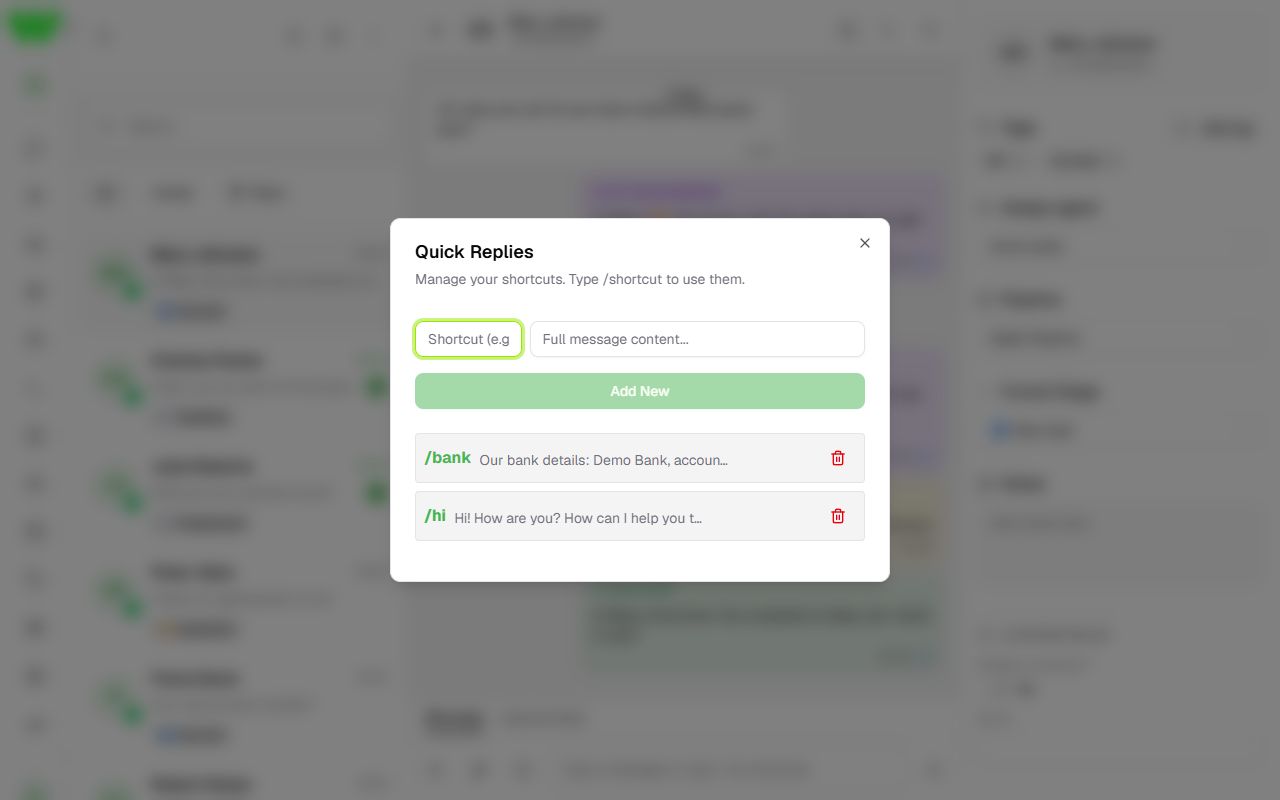
To avoid typing the same thing over and over, save quick replies:
- Click the ⚡ (lightning) icon in the typing bar.
- In Shortcut type the shortcut (e.g.
bank) and in Full message content the full text. - Click Add New.
Then, in any chat, type / followed by the shortcut (e.g. /bank) and pick the reply.
Internal notes
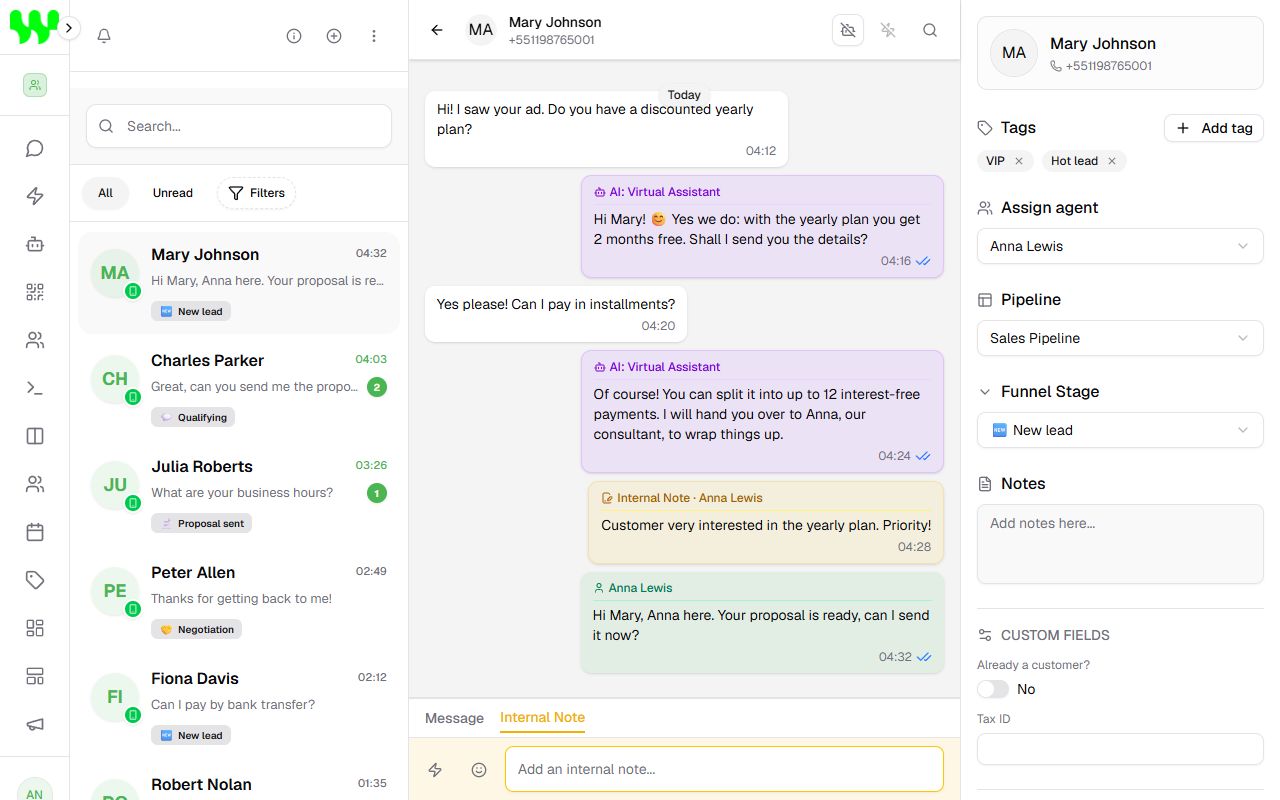
Want to leave a message for a colleague about this customer? Click the Internal Note tab (above the text field), type and send. The note appears in yellow for the team only; the customer never receives it.
Controlling the AI and automations in this chat
At the top of the chat, to the right of the customer's name, there are two buttons:
- 🤖 Enable / Disable AI Agent: turns the AI on or pauses it only in this chat. Use it when a human takes over the customer.
- ⚡ End Automation Session: if the customer is in the middle of a flow (e.g. a menu), ends the flow. It is greyed out when there is no active automation.
The AI pauses by itself
If someone on the team replies to the customer from the WhatsApp app on the phone, the system understands a human took over and automatically pauses the AI in this chat. To turn it back on, use the 🤖 button.
The customer record (right panel)
When you open a chat, the right panel shows everything about the customer. If they are not in the CRM yet, click Save Contact to CRM.
- Tags: click Add tag to choose or create a tag on the spot. Click × to remove.
- Assign agent: sets which team member is responsible for this customer.
- Pipeline and Funnel Stage: which pipeline and stage the customer is in.
- Notes: permanent notes about the customer (preferences, objections...). Click Save.
- Custom fields: extra data your team defined (tax ID, birthday...). See Contacts.
- Scheduled Flows: click Schedule to program an automation to run with this customer at a date and time (e.g. a reminder or follow-up). Only flows with the "Active / Scheduled Flow" trigger appear.
- Media assets: all photos, videos, audio, documents, locations and contacts exchanged in the chat.
Start a new conversation
- Click ⊕ at the top of the chat list.
- On the Start Conversation tab, choose From (Instance) — the number that will send.
- In To (Contact), search a saved contact or type the full number with country and area code (e.g.
15551234567). - Type the Message and click Send Message.
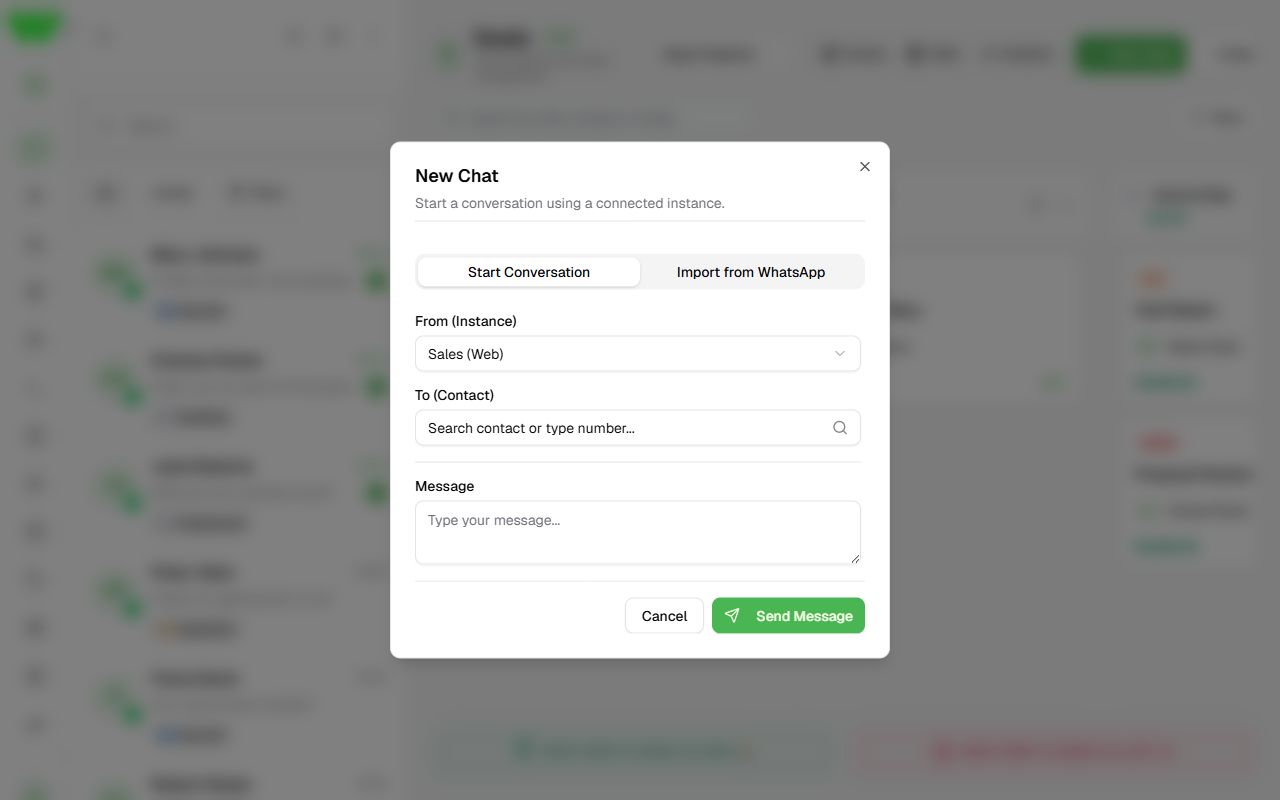
Official API: messages you start need a template
If the number uses the Official API (WABA), WhatsApp only lets you start chats (or reply after 24h without a customer message) using an approved template. In that case, the window asks you to Select Template and fill in its variables. See Message templates.
24-hour service window (Official API)
In Official API chats, the top of the chat shows a 24h Service Window counter. While it is open you can send any message. When Window Closed appears, you can only send an approved template until the customer replies again.
Import chats from WhatsApp
To bring in chats that already existed on the phone:
- Click ⊕ and go to the Import from WhatsApp tab.
- Choose the instance, tick the chats you want (or Select All) and click Next.
- Optionally choose a Pipeline and a Funnel Stage for the imported contacts.
- Click Import.
Delete chats
- Click the ⋮ three dots at the top of the list and then Select Chats.
- Tick the chats and click the trash icon.
Deleting a chat removes its history from the system. This cannot be undone.
Notifications
Click the 🔔 bell at the top of the list to:
- Allow Notifications: get browser alerts when a message arrives.
- Enable Sound and Alert Tone: turn the sound on and choose the tone.