-1.png)
The Schedule brings together on one calendar your appointments (meetings, visits, consultations) and the CRM tasks with a due date.
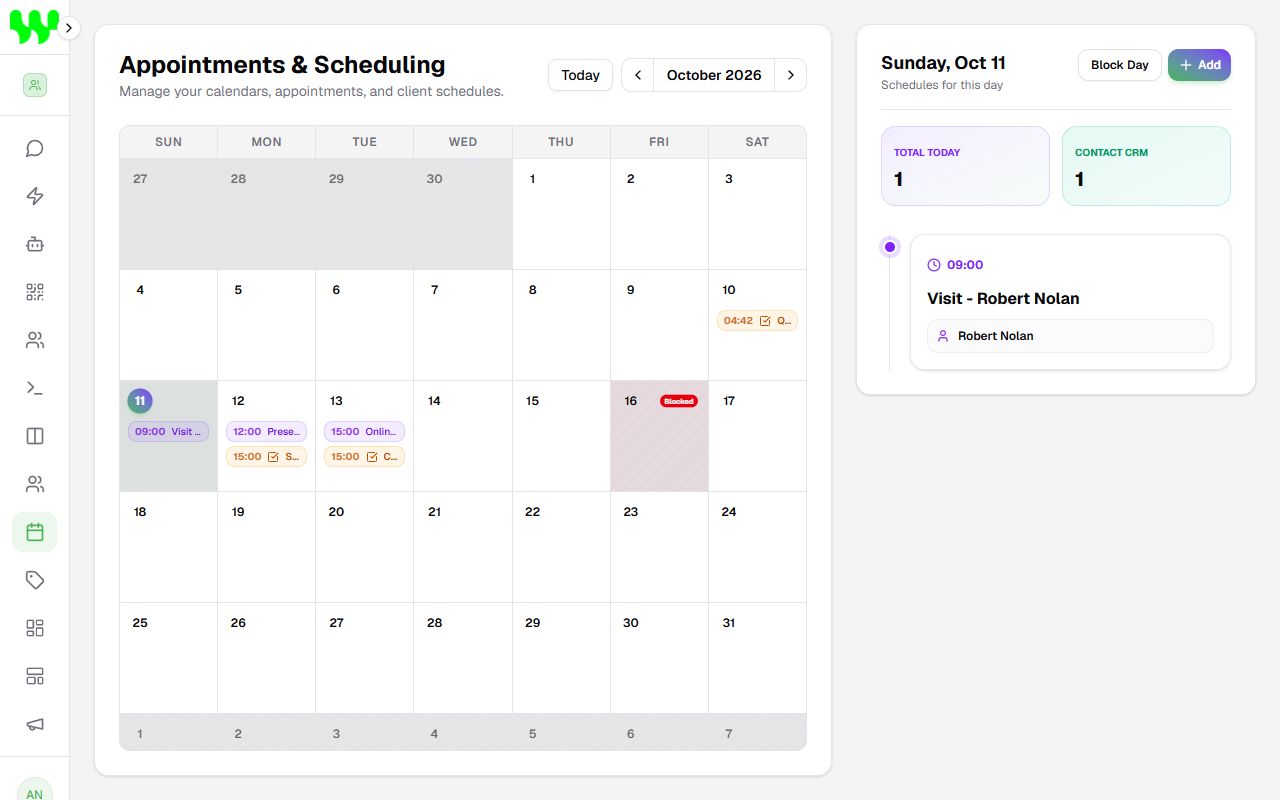
Navigate the calendar
- Use the ‹ › arrows to change months and Today to go back to today.
- Click a day to see, on the right, that day's summary: total appointments and the list with times.
- Colors: purple = appointment; orange with a task icon = CRM Task.
Create an appointment
- Click the desired day and then Add (in the right panel).
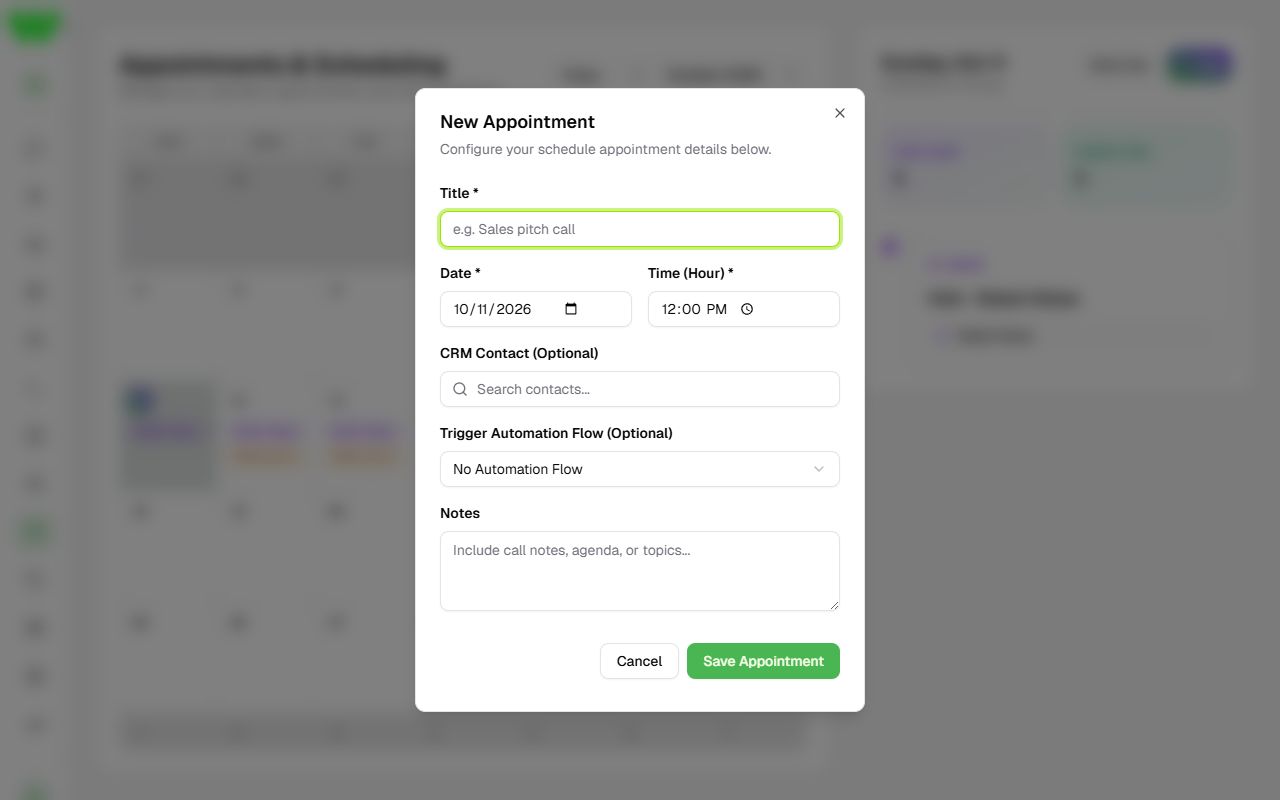
- Fill in:
- Title (e.g. "Visit - Robert").
- Date and Time.
- CRM Contact (Optional): search the customer linked to the appointment.
- Trigger Automation Flow (Optional): choose an automation to run at the appointment time with that contact (e.g. send a reminder). Only flows with the Active / Scheduled Flow trigger appear.
- Notes.
- Click Save Appointment.
To edit or delete, click the appointment in the day list.
Block a day
Holiday, day off or fully booked? Select the day and click Block Day (you can give a reason). Blocked days are marked and the AI and automations will not book times on them. To release it, click Unblock Day.
CRM tasks on the schedule
Tasks created in deals or contact records with a due date appear on the calendar automatically. Click Complete to mark them done. If you don't want a task here, untick Show in calendar on the task itself.
Automatic booking
Your customers can book times on their own through WhatsApp in two ways:
- With the AI Agent: enable the agent's Scheduling tab and set the days, working hours, duration and daily limit. The AI checks the schedule, offers free slots and creates the appointment. See AI Agents.
- With an automation: use the Availability Check and Create Appointment blocks in the flow builder. See Automations.
Permission
Creating or changing appointments requires the Manage Appointments & Schedules permission. Without it, the schedule is read-only.
Timezone
Times follow the Workspace Timezone set in Settings. Make sure it is correct to avoid wrong bookings.