-1.png)
Tags are labels you put on contacts to classify them. The same contact can have several tags, for example VIP and Follow up.
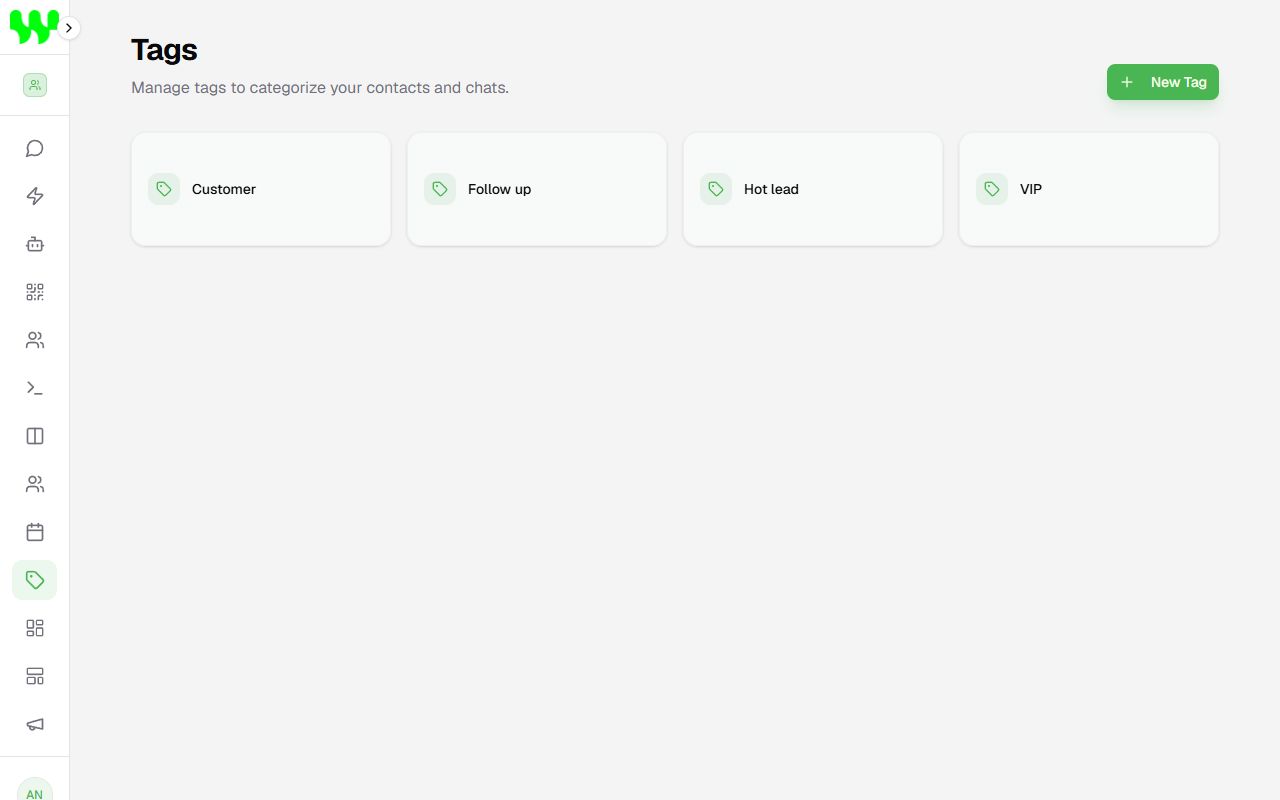
What they are for
- Filtering chats and contacts (e.g. see only VIP customers).
- Triggering automations: a flow can start only for contacts with a given tag, or add/remove tags during the chat.
- Letting the AI classify customers on its own (e.g. tag "Hot lead" when the customer asks for a price). See AI Agents.
- Restricting access: a team member can be limited to see only contacts with a tag. See Team and permissions.
Create a tag
- Open Tags and click New Tag.
- Type the name (e.g. "VIP", "Important") and click Create.
To rename, hover over the tag and click the pencil. To delete, click the trash can. When deleted, the tag is removed from all contacts.
Create on the fly
You can also create tags right in the chat: in the right panel, click Add tag, type a new name and choose Create and add.
Add and remove tags on a contact
- In the chat: right panel › Tags › Add tag. Click × to remove.
- In the contact record: Details tab › Tags, click tags to toggle them.
- In bulk: in Contacts, select several and use Tags › Add tag / Remove tag.
- Automatically: with the Set Tag block in an automation.
Good practices
- Use few tags with clear names. Many similar tags confuse the team.
- Combine them with the pipeline: the stage says where in the sale the customer is; the tag says what kind of customer they are.